
Table Manager ‐ Wizard
What is the TM (Table Manager) Wizard?
Note: For more information on what the 'Table Manager' is, and how to set it up, visit the Getting Started wiki page
The TM Wizard is a tool that let's you add VPXS tables to your USB in the easiest way possible!
The tables added via the wizard will:
-
Require minimal input from you to install. We only need the files we can't host:
.vpx,.directB2S,rom.zip,.c7Z -
Contain all table bug fixes/updates
-
Be fully optimised. No table will be added that does not run well!
-
Have full art packages; customer launcher images, custom DMD images etc.
-
Have all additional customisation options, like coloured DMDs, serum DMDs, button instructions
-
Have the ROM immediately configured with optimal home play settings. Free Play enabled, Extra ball at reply, ROM volume, etc.
How do I get to the Wizard?
The Wizard can be found in the Table Manager.
If you need help getting onto the Table Manager, then review the previous Getting Started wiki page.
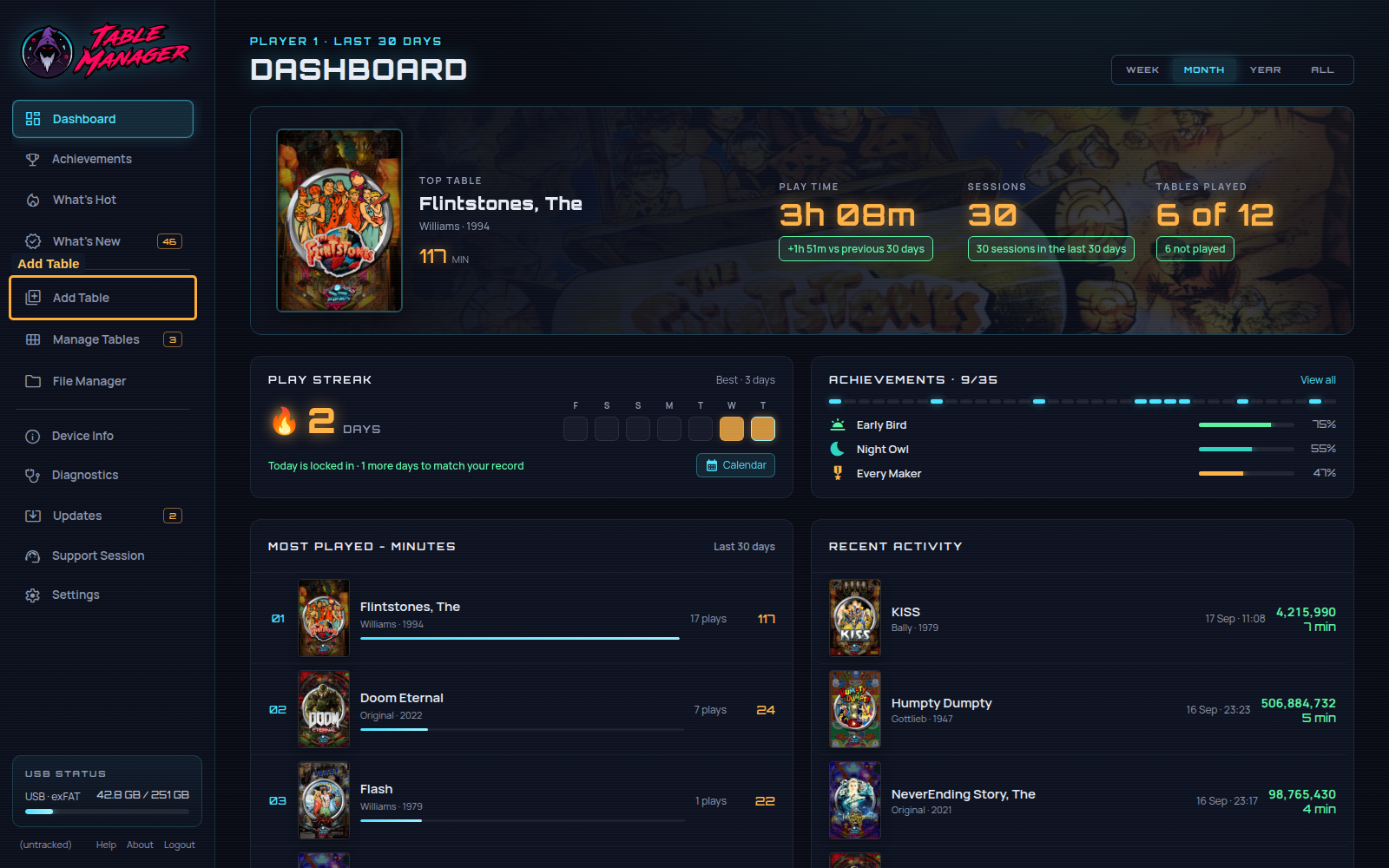
Once in the TM, select the Add Table button on the left hand side nav bar:
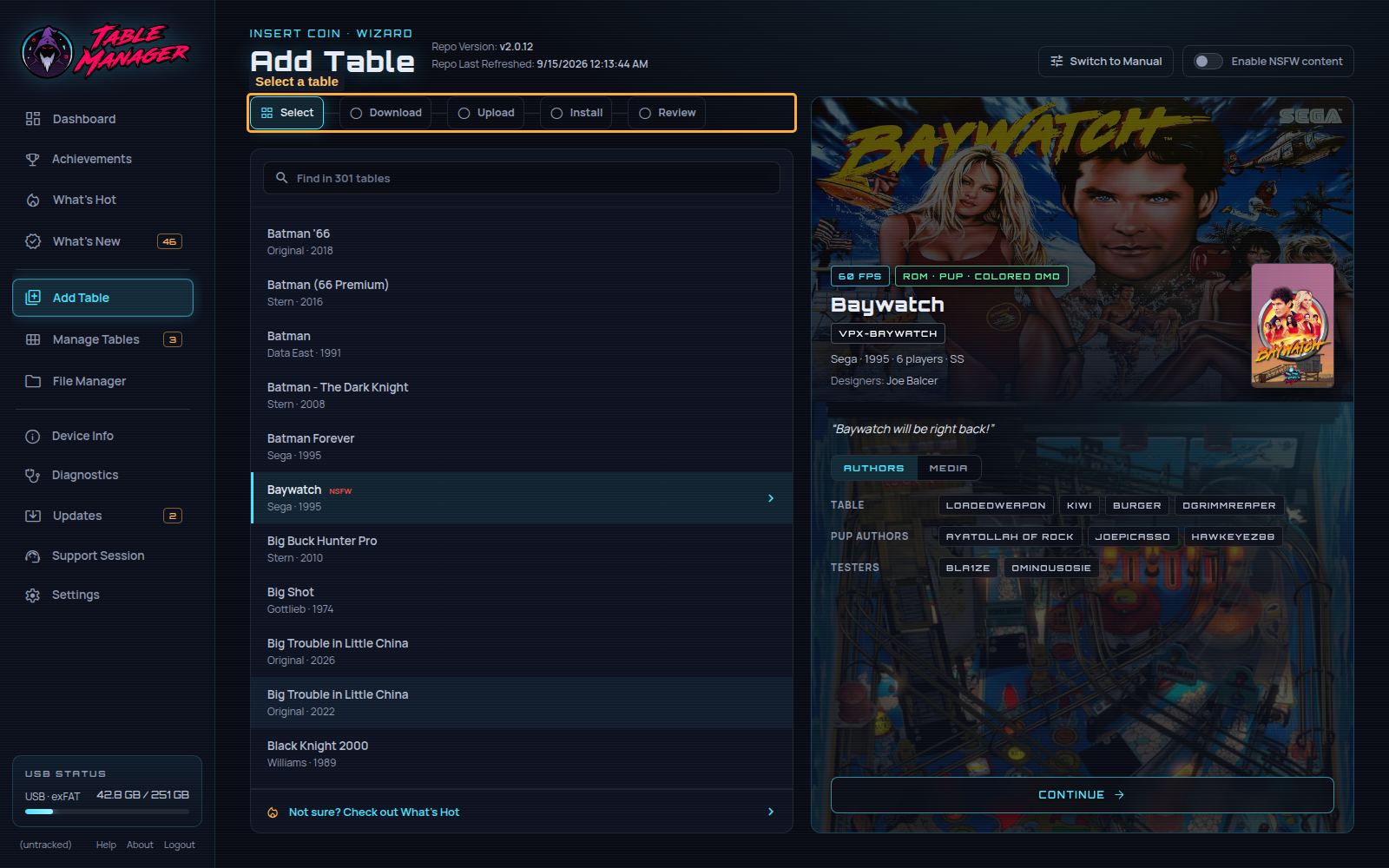
The Wizard opens on the Select step. If you are in manual mode, select Switch to Wizard at the top right:
How do I select a table to install?
There are multiple ways to select a table to install!
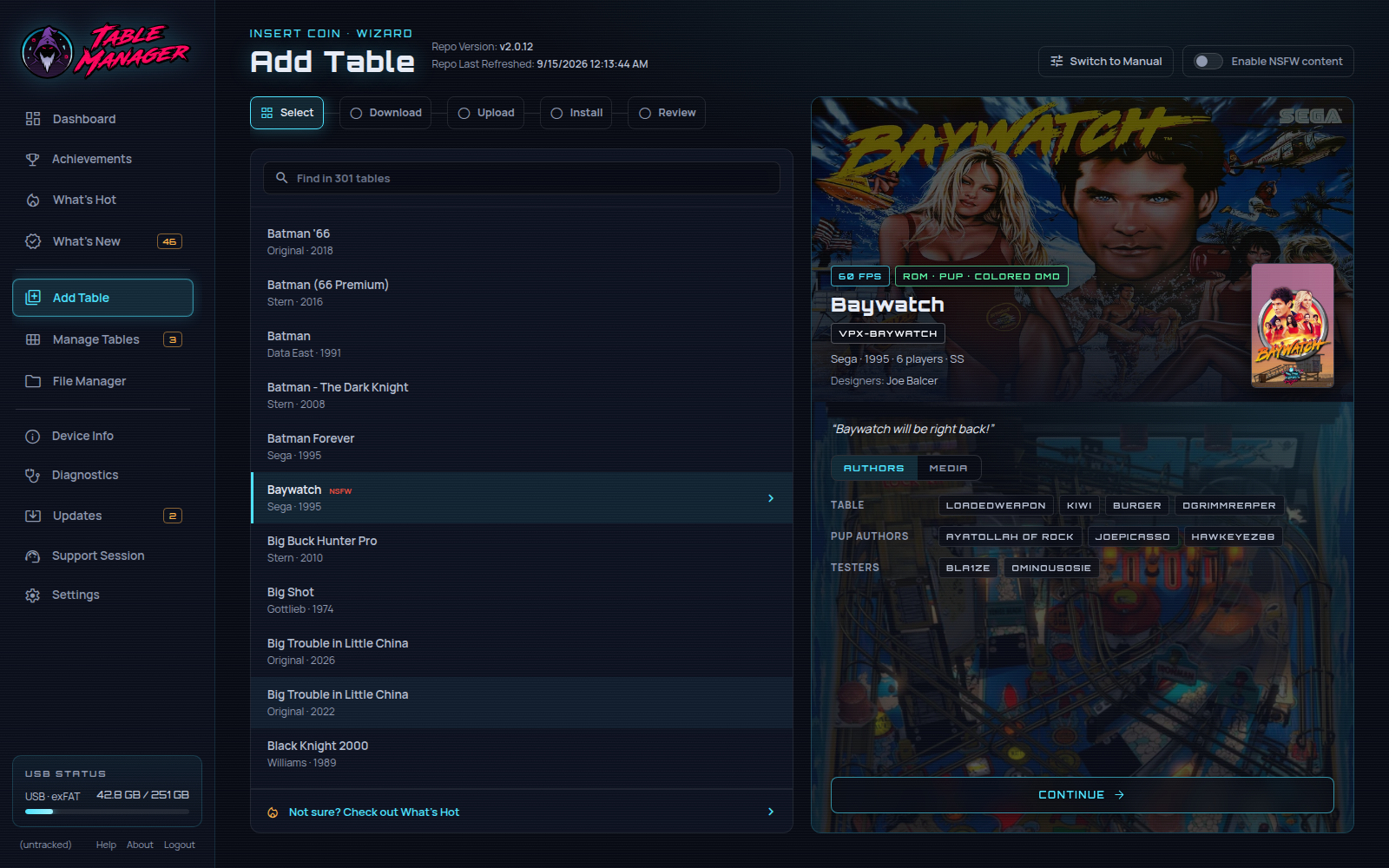
1) Browse the table list on the left. Select a table to see its artwork and information on the right.
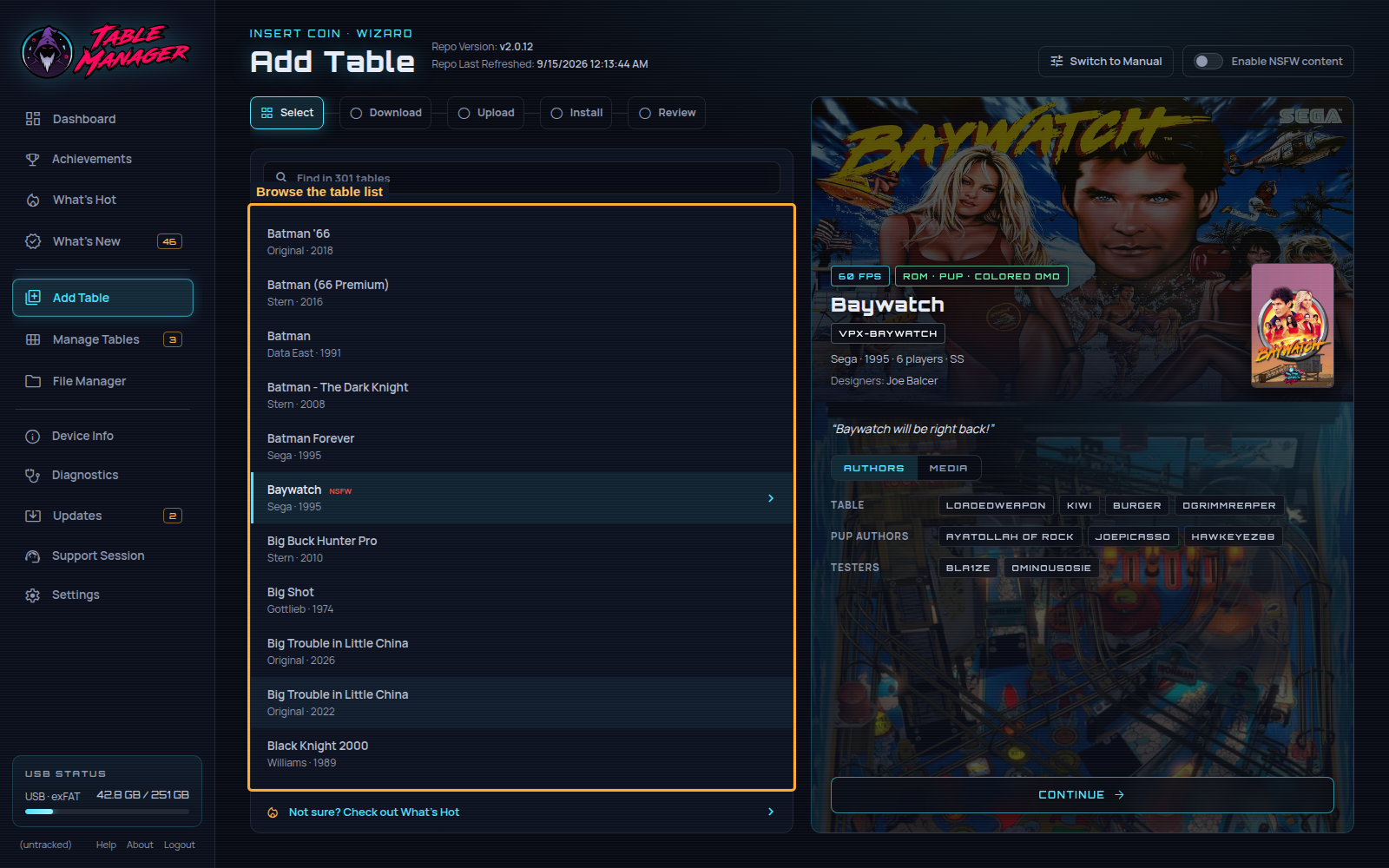
2) Scroll the list and click a table, or use the up/down arrow keys while the search field is focused.
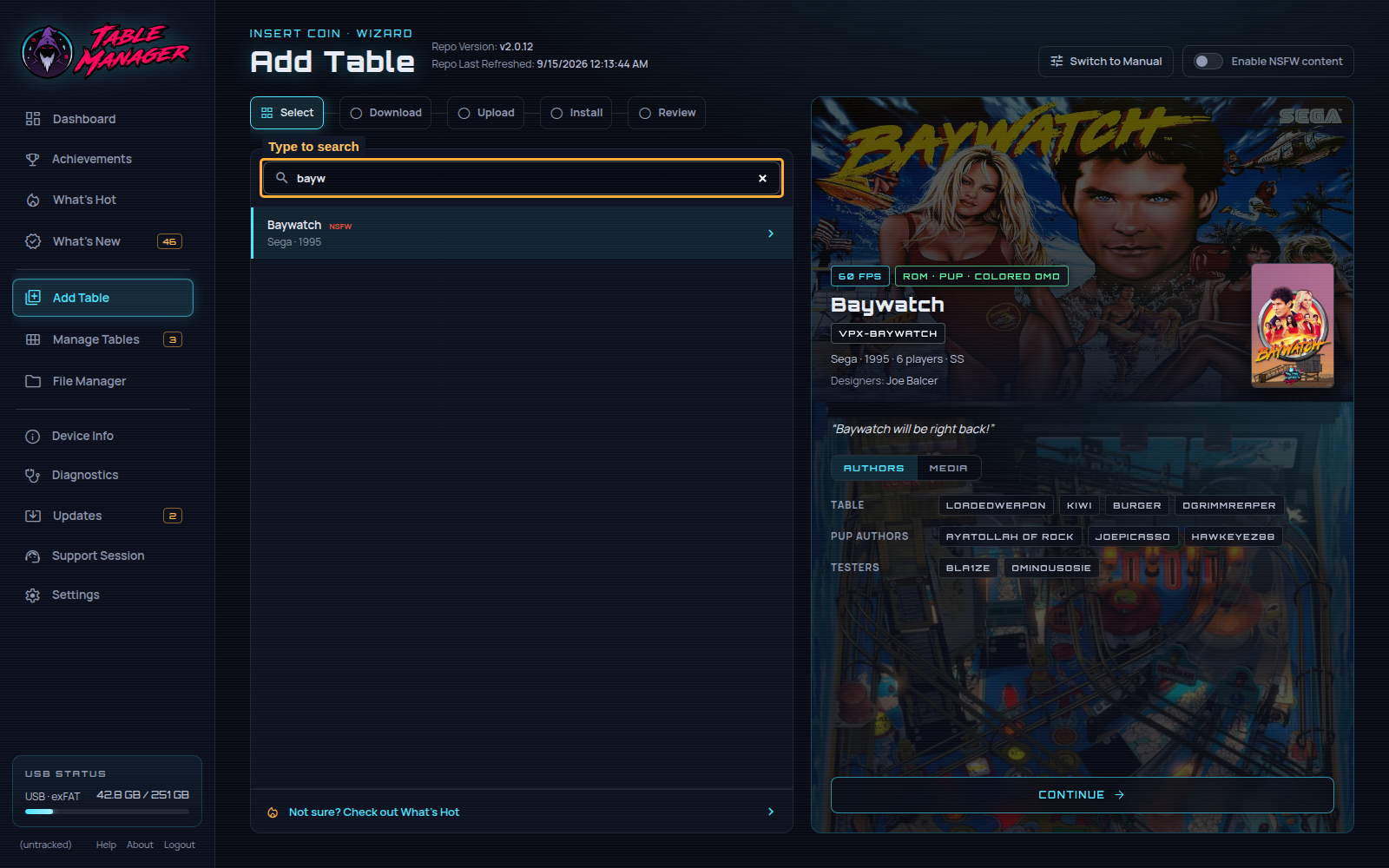
3) Type in the search field to filter by table title, manufacturer, year or author.
How do I install the table?
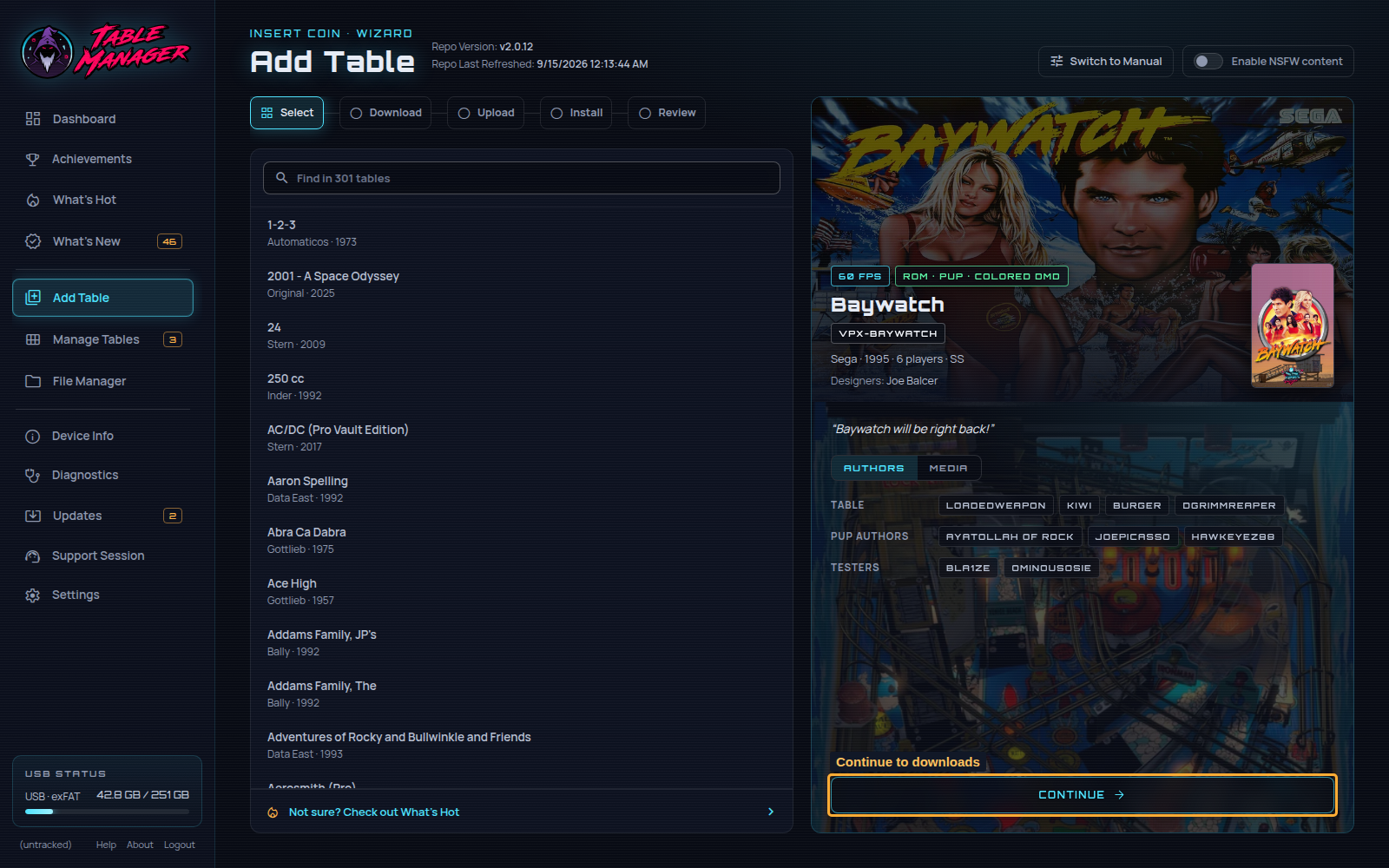
Once you've selected a table you'd like to install, click the Continue button:
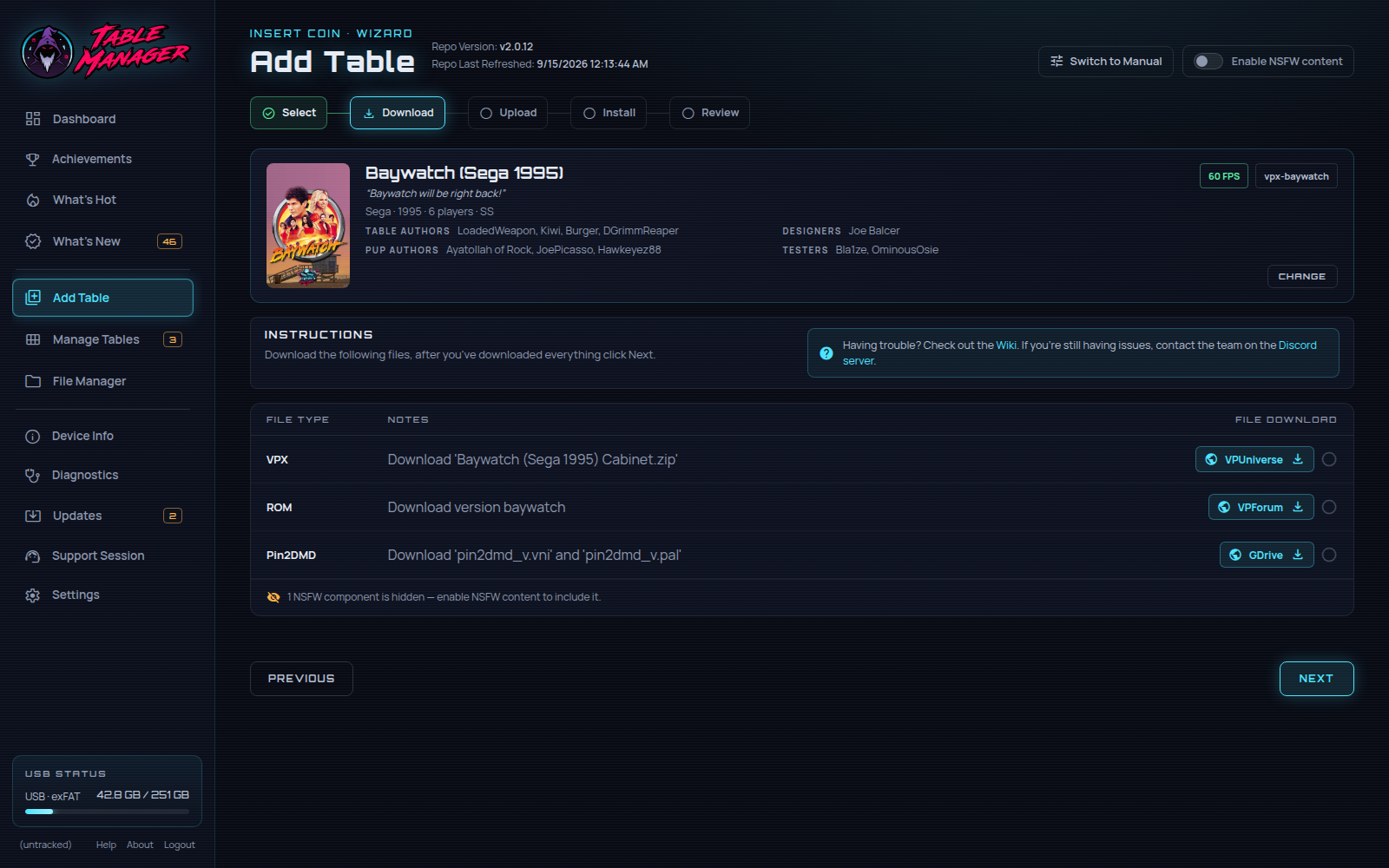
That opens the Download step:
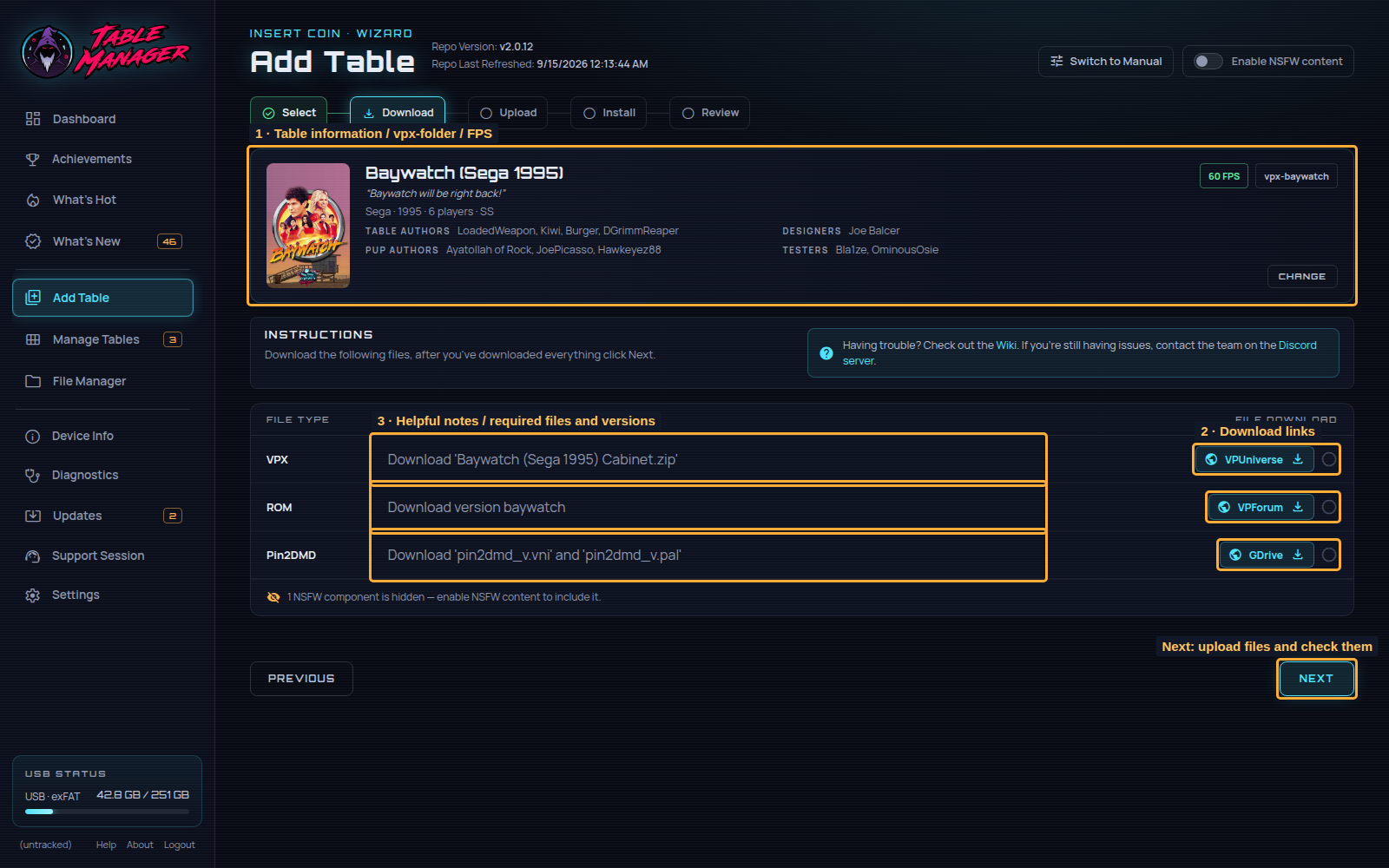
The numbered callouts show 1) table information, folder and FPS, 2) download links, and 3) the notes describing the required files and versions.
Select Next to open the separate Upload step: 4) choose your files, then 5) check the verified and mismatch counts.
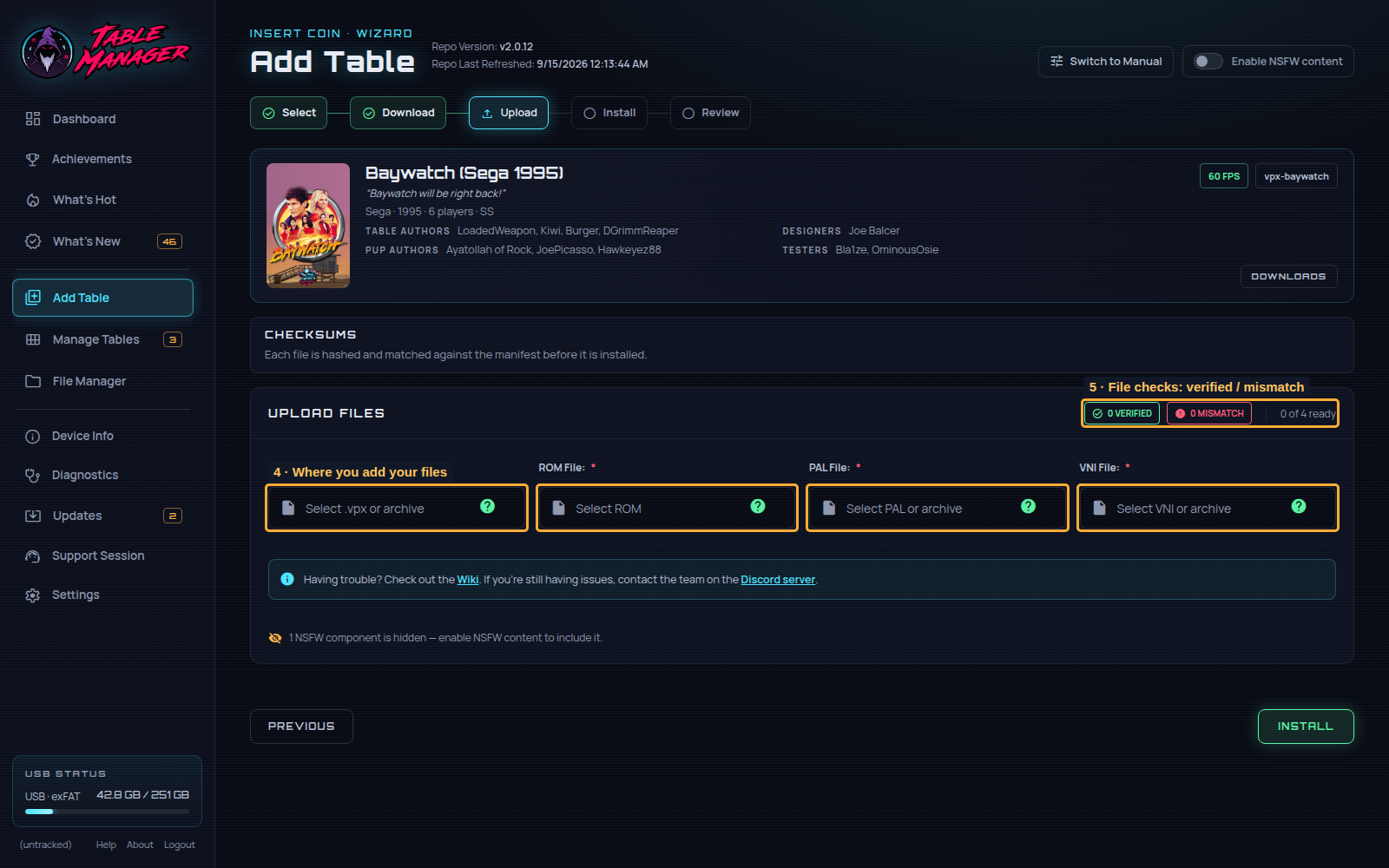
1) Open each required download link and download the version listed in the Notes column. Then select Next to open the Upload step.
Open the download links before choosing the corresponding upload files.
2) Once you have downloaded all the files, unzip the ones that need to be unzipped:
- .vpx file needs to be not zipped
- .directB2S file needs to be not zipped
- ROM FILE file needs to be zipped
- .c7Z Serum file needs to be not zipped
- PUP FILE file needs to be zipped and uploaded whole as downloaded
3) Choose each required file in the Upload files panel.
4) Check the verification summary: all required files should be ready, with no mismatches. If a file does not match, choose the correct version.
5) If everything was successful then you should see the page like the image below!
If not, return to Downloads and re-read the instructions and the Notes column.
6) Press Install and wait!
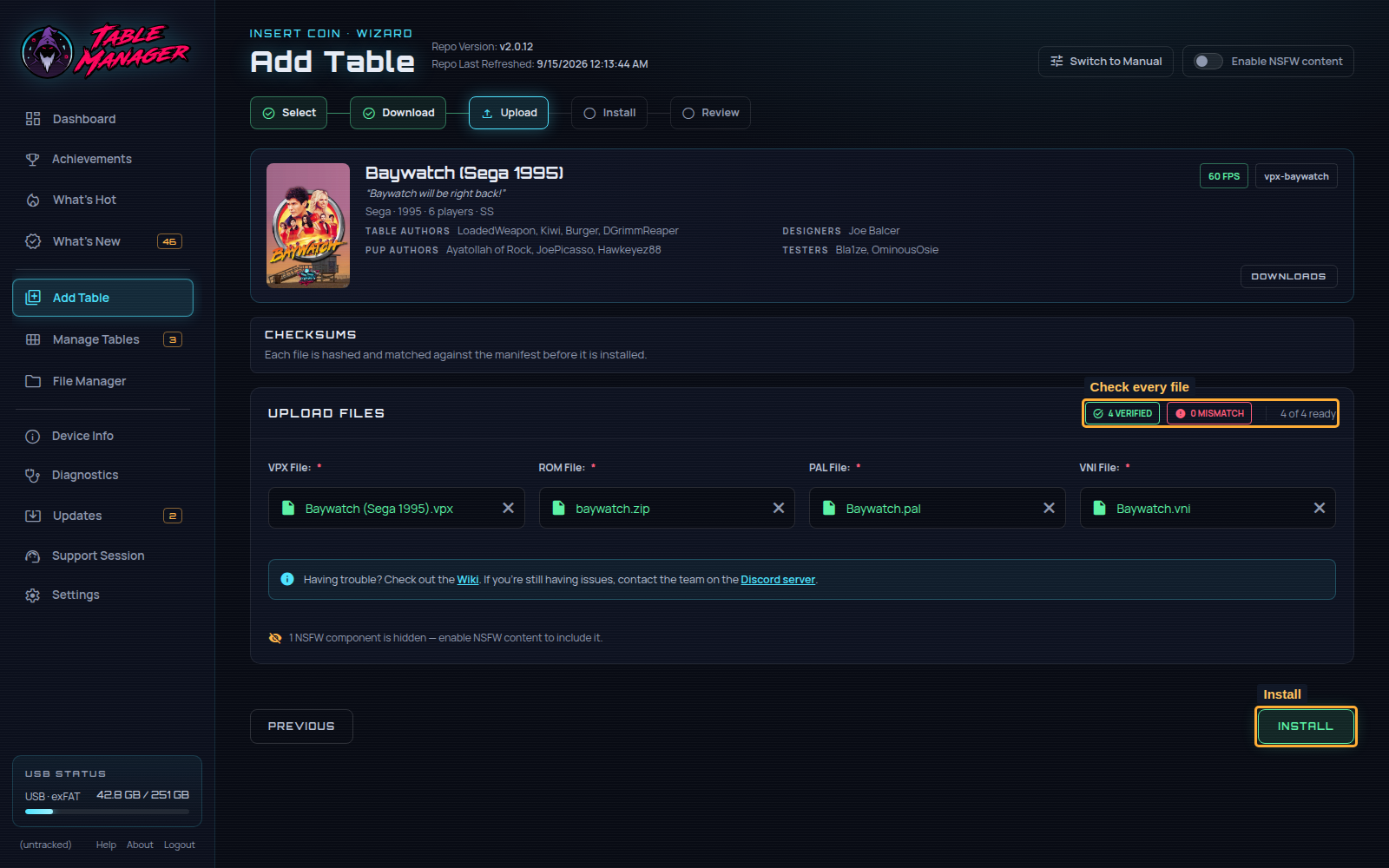
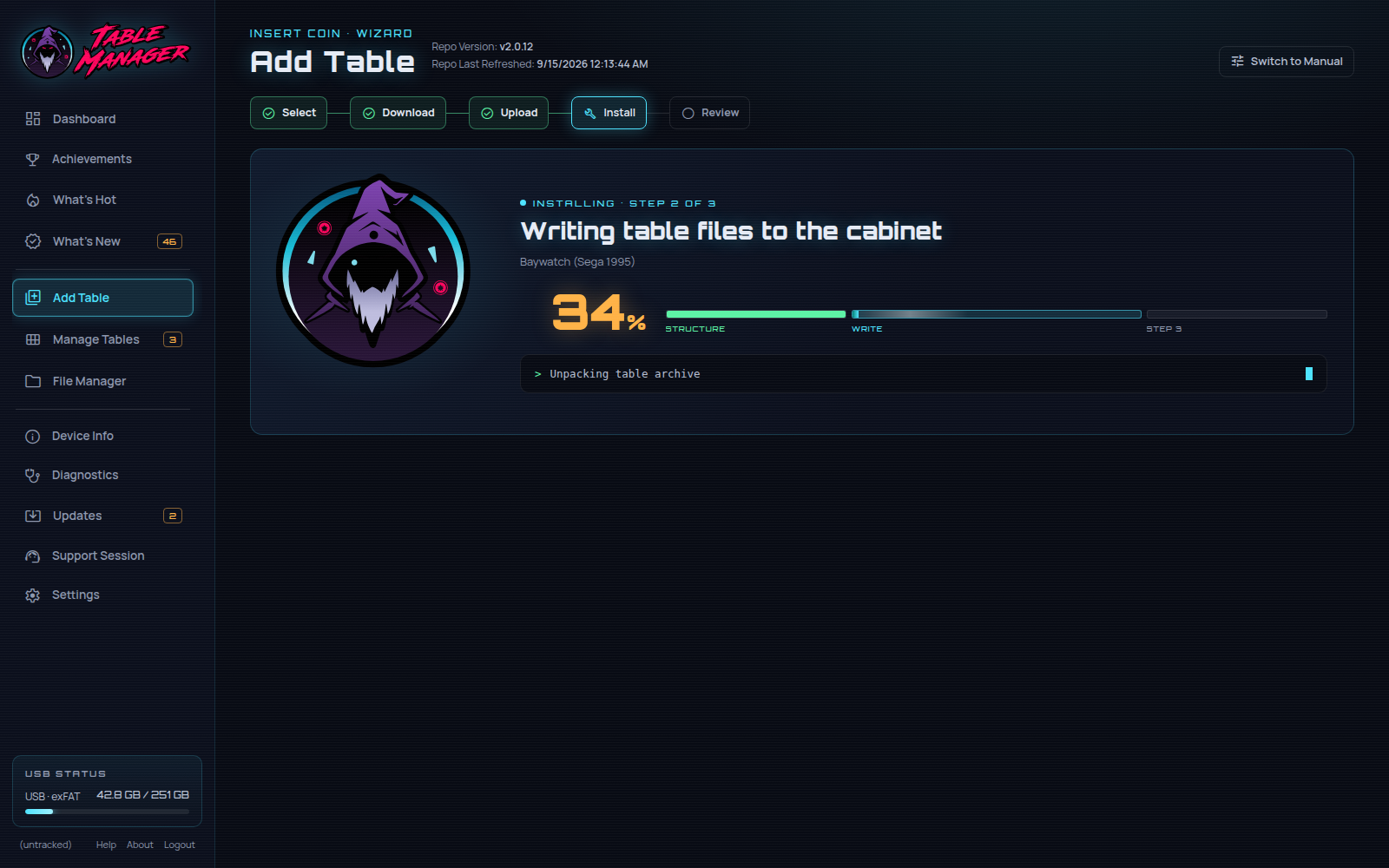
Once you've selected Install, the wizard uploads the files and installs the table, applying fixes where needed.
Please be patient!
What tables should I install first?
There are tons of amazing tables to be found in the Wizard!
Below are some recommendations for particularly great tables, as provided by the community!
Space Cadet - Galaxy Edition (Original 2021)
pointdablame:
A strong showcase of what virtual pin tables can be. Incredibly well put together with exciting table swaps for different goals. Plus, it is a great example of pup packs working on standalone
Reboot:
A great take on the classic game that most know from Win95! Amazing sound, art and graphics. Approachable rule set with great feeling shots. If you even remotely like Space Cadet from back in the day, you will love this take on it!
pointdablame:
A great theme to begin with, and the breadth of goals and options with the "episodes" keep it fun. Can be a tough table at times but in a way that makes you want to go again. The audio on the table is almost worth it by itself.
Onegoodball:
Very funny if you don't mind the language. Playfield is so sharp, and bright. Easy to follow along to the call outs.
Big Trouble in Little China (Original 2022)
AtlasBearsAll:
A true love letter to one of the best cult films of all time! This table is a complete original created by some of the best in the craft, Balutito and TeamTuga. Theme integration and artwork are top notch, with a unique take on a traditional fan layout. Callouts are also well incorporated and do a great job of bringing the movie to the table. Just remember, “I never drive faster than I can see. Besides that, it’s all in the reflexes.”
shaver:
Real showcase on the 4KP, proving you can have PuP-Pack video on the backglass and still have solid gameplay performance. All in all, an excellent original table. A must for fans of the movie. “It’s all in the reflexes!”
pointdablame:
A true classic that isn't just nostalgia. Fire it up to trigger some memories and you may lose hours trying to hit Rudy in his face.
Anonymous:
Nostalgia is a hell of a drug. And I hate Rudy so much. On the VPX everything is just so easy to see even thought the resolution is turned down. It plays so nice. Its fair the gap isnt too big. It doesnt kill you for attempting a shot and failing. - QUIT PLAYING WITH THE CLOCK!!
shaver:
Became a fan of this table during VPXS tournament play. Fast, fluid gameplay. Tough but fair. Rewarding “Riptide” orbit shot. If you love drop targets, check this one out. Love the crashing waves sound fx, too!
Ominous Osie 🌸:
This table is absolutely incredible, it is the perfect showcase of a older table that can still blow the minds of modern audiences! Fast, furious, and with a deceptively simple yet incredibly challenging goal!
Ominous Osie 🌸:
Probably the single best table Sega produced! Fantastic theme integration, music, and layout, one of the best tables out there for a casual fun time! Contains the 'Shark Flipper', from which Stern's Jaws took major inspiration!
AtlasBearsAll:
A spot-on recreation of one of the perennial favorites from the golden age of pinball; this table plays true to its real-life counterpart. The authors even managed to recreate the spider game on the backglass to a tee. With a playfield that flows and great humor in its callouts, this table plays as well virtually as it does in real life. "Let's see how scared stiff you can get!"
JP's Ghostbusters Slimer (Original 2023)
AtlasBearsAll:
Considered to be one of the more difficult real world pins, this virtual version, built on the real table’s code, holds true to its predecessor’s reputation. Large flipper gaps, unrelenting shots, and the Scoleri Brothers pop-up targets all contribute to the difficulty of this table. Don’t let that scare you off though, this table has great movie assets with hilarious call outs, beautiful artwork, and exceptionally fun, if not challenging, modes. “We came. We saw. We kicked its ass.”
TRON Legacy Limited Edition (Stern 2011)
Reboot:
One of my top Stern machines from the mid 2000's! Plays fast and smooth and the inclusion of movie clips and sounds really take this table over the top. It's one I always come back to and play a few rounds on!
Common Questions
What tables are in the Wizard?
You can see a full list of tables available in the wizard on our repo README!
What were the recently added / updated tables?
All the beta testers will be notified via the Discord server when new tables are added, the announcements will be in the #📢 [announcements] in the VPXS GL channel group.
You can also find the list on the repo's releases page!
Why aren't all the tables available in the Wizard?
To get them added to the wizard requires a lot of effort, from a group of volunteers who do it in their spare time!
All tables in the wizard are optimised, and if the table doesn't run well enough we won't add it!
We will likely never have all repo tables in the wizard, but rather, the best of the best!
If there is a table you'd really like added, let us know in the discord!
I have a suggestion / feature request for the Wizard
That is great, and we love hearing all feedback / suggestions / feature requests!
But first, we'd kindly ask you to double check it hasn't already been asked using the Discord search bar.
If not, then message us in the #beta-testers channel!
Can you still add tables manually?
Yes! We still have the Add Table > Switch to Manual tab, and you can freely play any table on the repo via the Manual method!
We would recommend however to install any tables that are available in the Wizard, through the Wizard and not manually!
Non-Wizard tables will not be blocked in any way.
Common Issues
Why doesn't this table appear in my Wizard Dropdown?
The wizard checks which tables are already installed and excludes them from the selection list.
For example:
1) I am trying to install Baywatch, but it's not in my wizard table selection list...
2) Likely, I already have a vpx-baywatch folder in File Manager > external
3) Delete the vpx-baywatch folder
4) Now the Baywatch table is in the wizard!
I already manually installed a table... can I just update it through the Wizard?
No, you cannot currently update an existing table using the Wizard
That feature is planned, and will eventually exist. Please be patient in the meantime
To get all the features / improvements from the wizard, then please delete the existing folder in File Manager > external and reinstall using the Wizard!
I installed a table through the Wizard but it doesn't work / crashes?
The Wizard is a relatively complex tool that pulls data from a few different sources when you install a table.
Sometimes the process goes wrong through things beyond our control, like internet performance etc.
If your table doesn't work:
The first thing to do is delete the folder in File Manager > external and reinstall it!
If the table still do not work, then please raise a support ticket in the 💬 vpx-beta-support channel in the Discord!
I updated the Table Manager... but do not see the new Wizard features?
The TM is a website that relies heavily on JavaScript, which means that the cache affects it a lot!
If there are new features and you aren't seeing them, then you likely need to reset your browser cache.
Most browsers will clear your cache by simply holding shift and then pushing F5
If you need further help: - Google Chrome: How to clear your cache - Firefox: How to clear your cache - Edge: How to clear your cache - Safari: How to clear your cache