
Getting Started
Get Your USB
Step one is very simple, buy a USB stick!
WARNING
We have many reports that Sandisk drives are very prone to failing.
Please avoid using one, and try to stick to the below!
You can find below the official supported list:
Note: These are affiliate links.
ℹ️ Does it HAVE to be one of the supported USB drives?
No, it does not have to be.
However, support from the LU team will be extremely limited.
Why? Simply put, each of the recommended drives listed have been vetted through rigorous testing over the past two years, and are proven to work on 99% of all tables released on the Wizard.
ℹ️ What are the minimum specs of the USB?
The USB needs to be at least:
- USB 3.1
- 400 MB/s Read Speed
- 110 MB/s Write Speed
ℹ️ What format does the USB need to be?
It needs to be formatted to EXFAT. Most USBs already come in that format.
If you need to reformat your drive there are plenty of guides online. Here are a couple: [Sandisk] | [WagnersTechTalk]
ℹ️ Can I still put my BOYG / Attract Videos etc on the USB?
Yes! All those folders can continue to exist on the same partition as the VPXS table files/folders!
In fact, its easier then ever to add / edit / remove those files as the Table Manager can be used to edit your USB files from your PC without removing the USB!
ℹ️ Can I also have Flash Drive X (FDX) / AtGames tables stored on the USB?
Yes! If you would like FDX storage on the drive you will just need to dual partition your drive.
⚠️ WARNING!!!
⚠️ Be very careful! If you format the wrong drive, you can lose everything on your PC!
⚠️ THE BELOW IS A SIMPLE GUIDE! CONTINUE AT YOUR OWN RISK!
Step 1) Insert your USB stick / flash drive into your PC.
Step 2) Open your Disk Management software
Step 3) Locate your USB drive (it should state `Removable`)
(NOTE: I recommend not having any other USB storage devices connected to your computer during this step to avoid any confusion/mistakes.)
Step 4) Right-click on the drive, and select Delete Volume - and click Yes (again, triple-check it's the correct drive!!)
Step 5) Next, we'll create two separate partitions on this drive. The first will be for Flash Drive X, the other for the your external applications (VPXS / Attract mode videos / BOYG).
Step 6) Right-click in the Unallocated section of the USB drive and select New Simple Volume.
Step 7) For the Simple volume size in MB, enter one of the below:
- 16384 (to create a 16GB partition)
- 32768 (to create a 32GB partition)
- 65536 (to created a 64GB partition).
I created a 32GB partition for use with a 256GB USB stick (65536). However, if you're using a 64GB/128GB USB stick, to go with 16GB (16384).
This partition will be re-formatted when we run Flash Drive X and used for running applications.
Step 8) Select FAT32 for the File system type. Continue through and create the partition.
Step 9) Next, on the remaining unallocated space, create another New Simple Volume
Step 10) Use the full remaining space, and choose file system type exFat. Continue through and create the partition.
Table Manager Install
Next we need to install the Table Manager onto your USB drive.
To do this, first plug your USB drive into your PC. Then visit the installation website below, and follow the steps to install the TM!
NOTE
The Table Manager is an app you run directly on your 4KP, which loads a website.
On the website you can add/update/remove VPXS tables, update software, track your stats, rate tables, and much more!
ℹ️ Step by step instructions? (w/ images)
Step One) Plug your USB into your PC, and visit the website above
Step Two) Click `Install to USB Drive`
Step Three) Navigate to your USB drive, and click `Select Folder`
Step Four) Allow the Browser write permissions if it asks
Step Five) We will check you've selected a valid USB drive. If everything is okay then click `Yes, install here`
Step Six) Wait for the installer to do it's magic!
Step Seven) Once it's done, you are good to go!
Don't forget to safely remove your USB!
Essential Checks
You are on the latest Firmware
You MUST be on the latest AtGames firmware to run the Table Manager and it's VPXS tables.
General Launcher v2.0 is required for any of this to work, so make sure you've updated to the latest.
You have to disable 'In-Table or In-Game' Attract Mode
In the 4KP/HDP settings, click Attract Mode and disable Allows Attract Mode In-Table or In-Game
ℹ️ Step by Step instructions? (w/ images)
In the 4KP/HDP settings, click `Attract Mode` and disable `Allows Attract Mode In-Table or In-Game`
The Table Manager has been updated
Plug your USB into the blue port on your 4KP and launch the Table Manager app in the External Applications tab.
Your Table Manager should automatically update the first time you launch it!
If it doesn't, go to the Table Manager website and update each section. Full instructions below.
ℹ️ What is the username/password for TM?
Username: legends
Password: unchained
ℹ️ I can't connect to the TM website?
Troubleshooting:
- Make sure the app is still running on your 4KP while you are trying to access the website.
- Make sure your 4KP is on the same network as your PC/mobile. The website is being hosted directly on the 4KP so you have to be able to access your 4KP on the network.
- Make sure to carefully type the URL onto your PC/mobile browser, or use the QR code. You need everything from `http://` to the `:9999`, you do not need `(WLAN)` in the URL.
- If you wifi supports 2 ranges, if you are on 5ghz switch to 2.4 or vice versa. See if the other band works better. Its also worth disabling DFS if you're on the 5ghz band.
- If wifi really isn't working, try plugging your 4KP/HDP in using an Ethernet cable.
- Try disabling your browser extensions before going to the URL, or try a different browser.
- Verify you have completely disabled In-table Attract Mode on your 4KP. Go to Settings > Attract Mode and DISABLE the attract mode in-table option.
ℹ️ How to update the Table Manager yourself if it isn't automatic? (w/ images)
Step One) Plug your USB into your 4KP. Make sure it's the blue USB port.
Step Two) Navigate to the `External Applications` tab, and click on `Table Manager` > `Launch`
Step Three) Jot down / photo the URL on the Table Manager and enter it into your phone / PC browser
Step Four) Log into the TM using the below details:
Username: legends
Password: unchained
Step Five) Click on `Updates` (either the popup box or the tab menu on the left hand side)
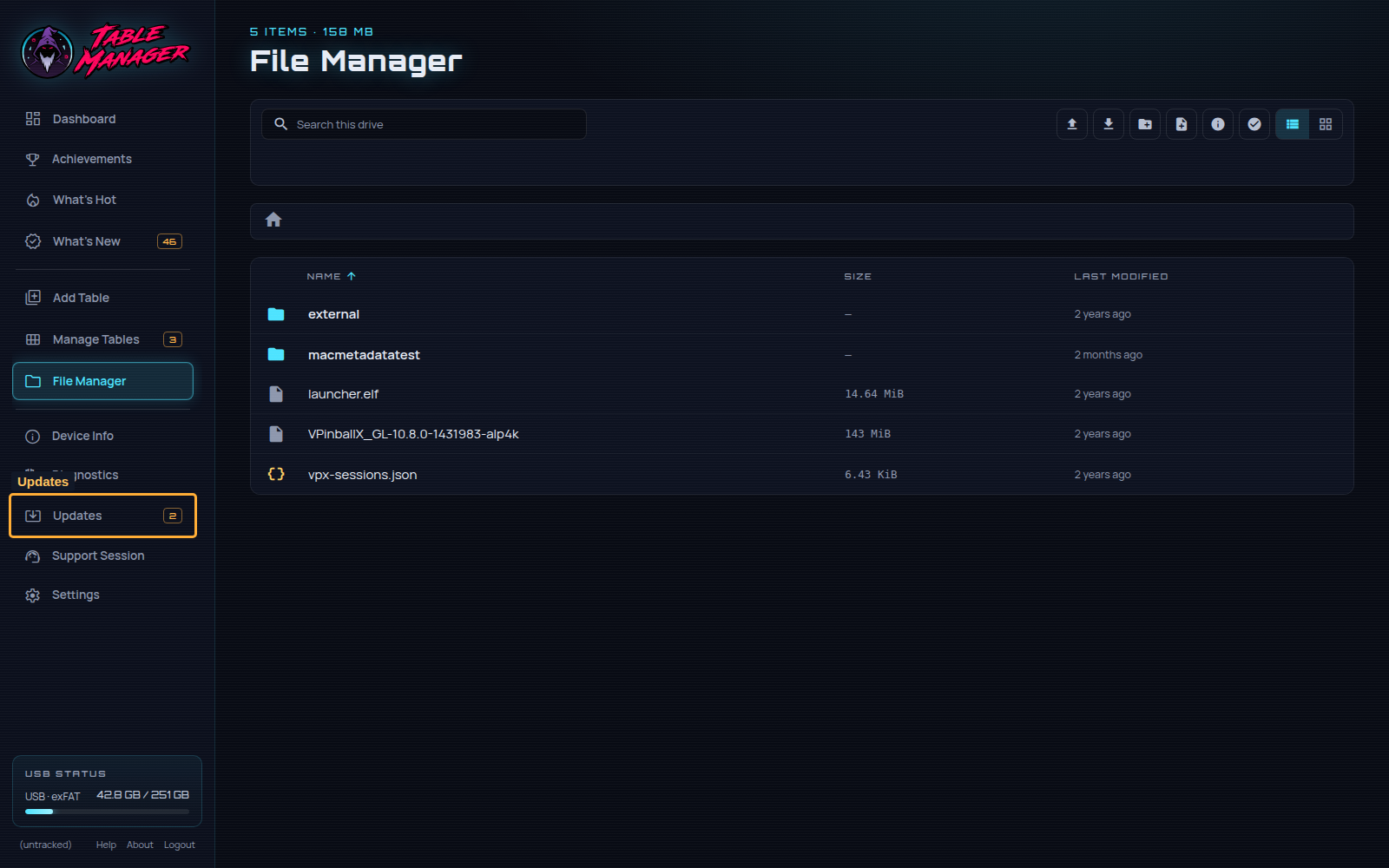
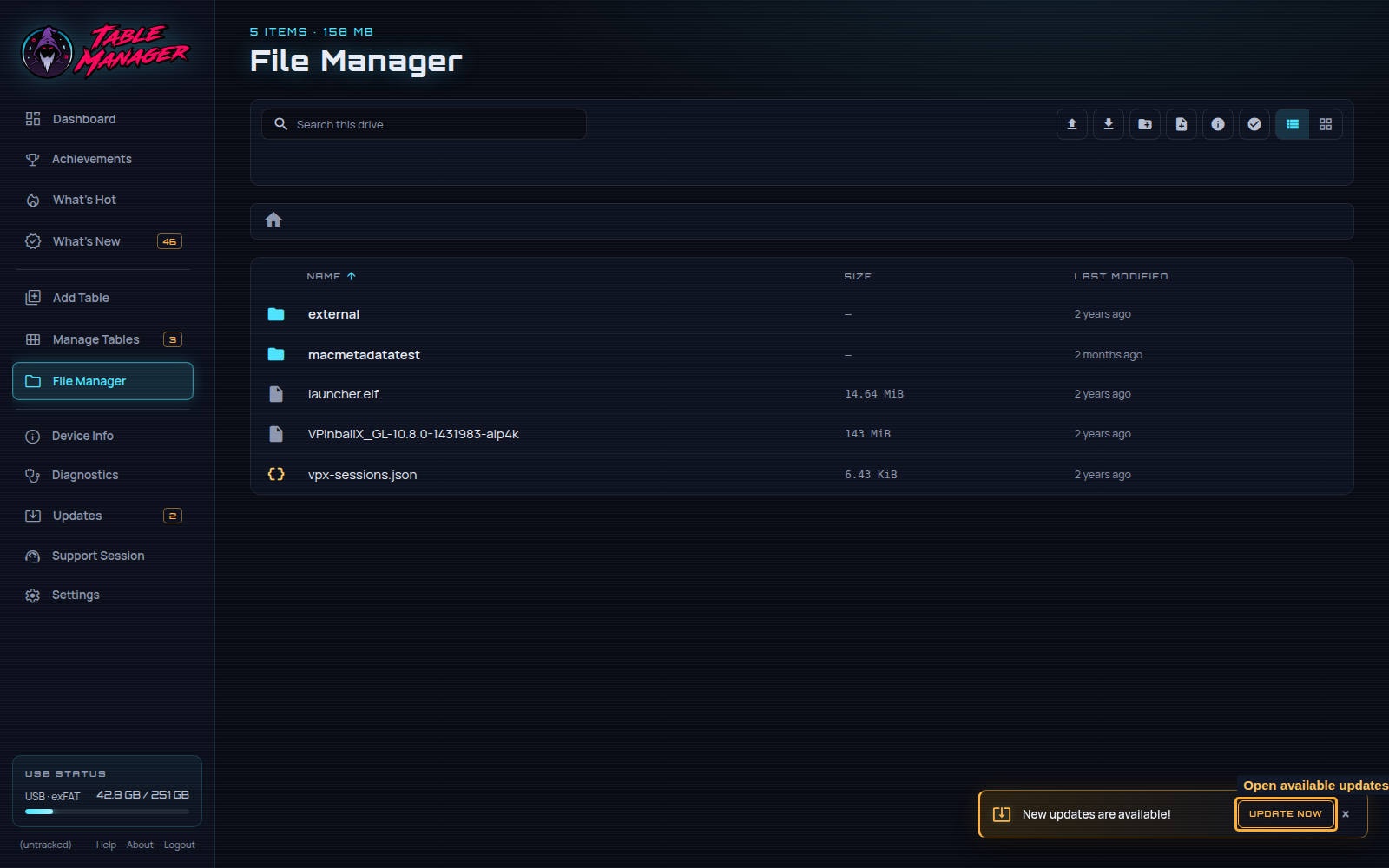
Step Six) Update each component. The `Table Manager`, the `Bundle`, and the `Launcher`
Step Seven) Close and Reopen the Table Manager app on your 4KP/HDP!
Your USB drive passes Drive Checks
The first thing the Table Manager will do is double-check your USB drive meets are minimum specs.
ℹ️ 'Checking USB link speed' failed | Slow USB drive detected
If you get the 'Checking USB link speed' failed error, and you see 'Slow USB drive detected' on your machine.
That means our software only detects USB 2.x, not the minimum 3.x.
Common issues include:
- Your USB isn't 3.x.
Use a new drive that is.
- You don't have the USB plugged into the blue port.
The blue port supports 3.x but the others don't.
- Avoid using Sandisk drives.
We get a lot of reports of these having issues. Try another brand.
- You are using an Unpowered USB hub.
Make sure it's powered or plug the USB directly into the blue port.
- You are using a SSD and the USB cable doesn't support 3.x.
Use a new cable that does support 3.x!
- Make sure your drive was partitioned using a dedicated tool.
Not using windows 'Quick Format' program.
- Try having a single partition on your drive, rather then dual partition.
AtGames seems to have an issue with GPT partitioned drives.
- Restart your 4KP/HDP with the USB plugged in.
We have had one report that turning the machine off, waiting 30 seconds, then turning it back on helps.
ℹ️ 'Checking exFAT filesystem' failed
If you get the 'Checking exFAT filesystem' failed error, that means your USB is not formatted correctly
Make sure it's formatted as exFAT.
Use a dedicated formatting program to do it, avoid using Windows Quick Format.
ℹ️ 'Checking USB drive' failed
If you 'Checking USB drive' error it can be one of two things:
- USB Drive Speed.
This means your drive is reporting slow.
The minimum write speeds are 15MB/s.
Upgrade your drive using the recommendations at the top of this page.
- USB Supported.
This means your drive is not one from our supported list.
Please buy one from the list at the top of this page.
This is just a warning, click 'Continue Anyway' to continue.