
Adding Your First Table
TIP
Tables are added via the Table Manager.
Click here if you are unsure how to launch the app and connect!
Choose your Table
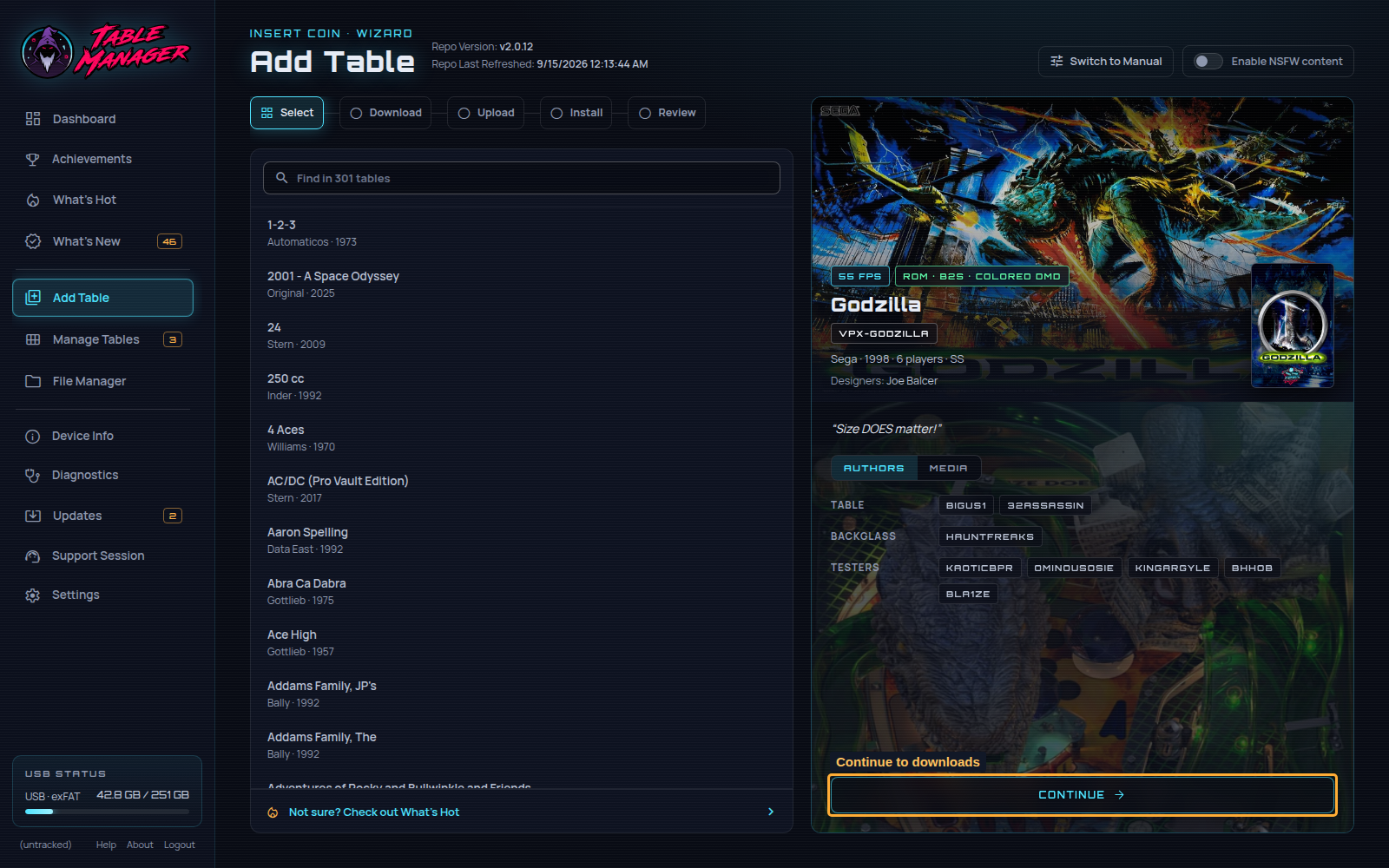
Click Add Table to enter the Table Manager Wizard.
This is a form that helps you install VPX tables easily!
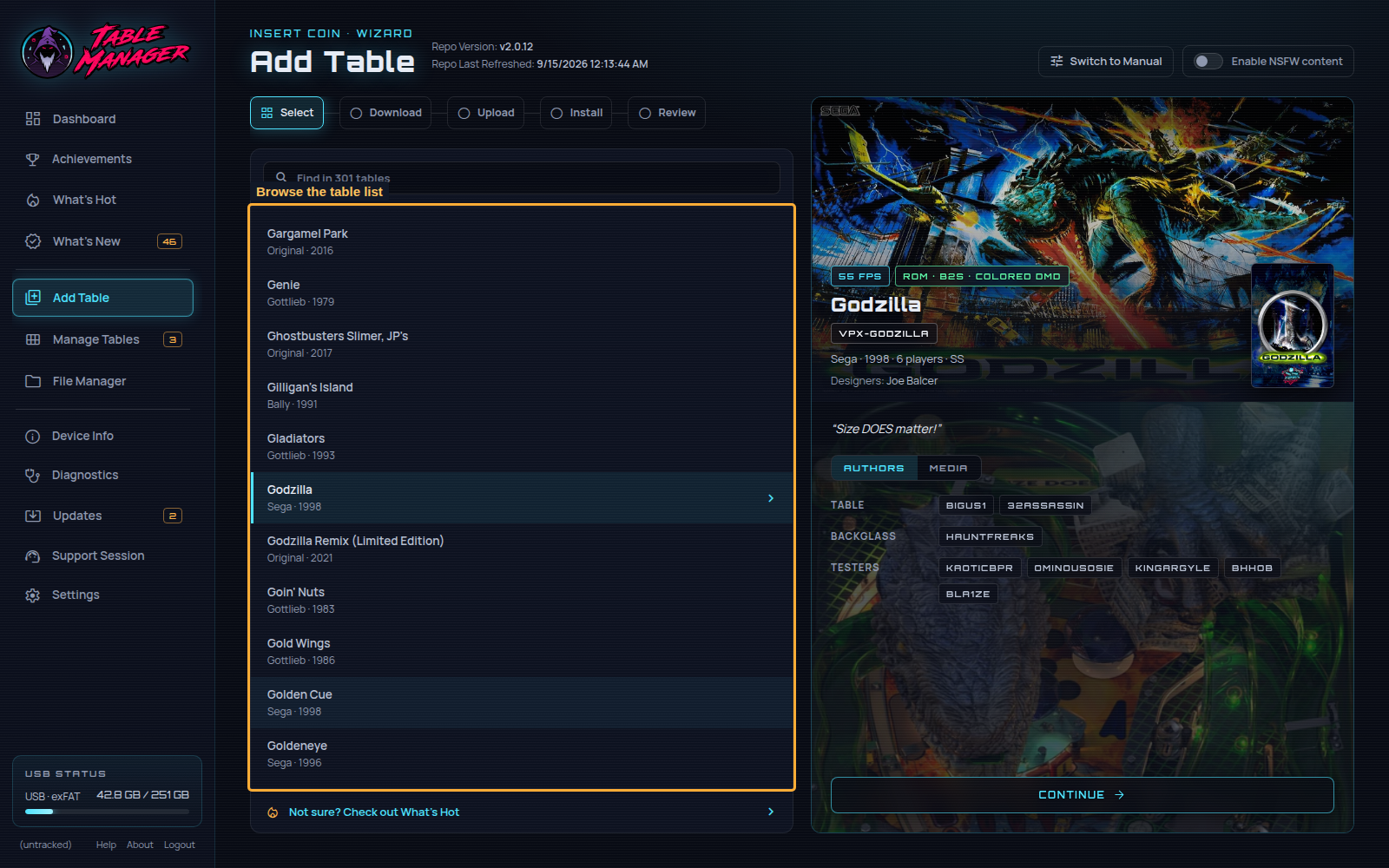
On the left of the Select step, browse the table list or type in the search field. The selected table’s artwork and information appear on the right.
Choose a table to install.
For this walkthrough, select Godzilla (Sega 1998).
Then click Continue
ℹ️ Step by step instructions? (w/ images)
Step One) Plug your USB into your 4KP. Make sure it's the blue USB port.
Step Two) Navigate to the `External Applications` tab, and click on `Table Manager` > `Launch`
Step Three) Jot down / photo the URL on the Table Manager and enter it into your phone / PC browser
Step Four) Log into the TM using the below details:
Username: legends
Password: unchained
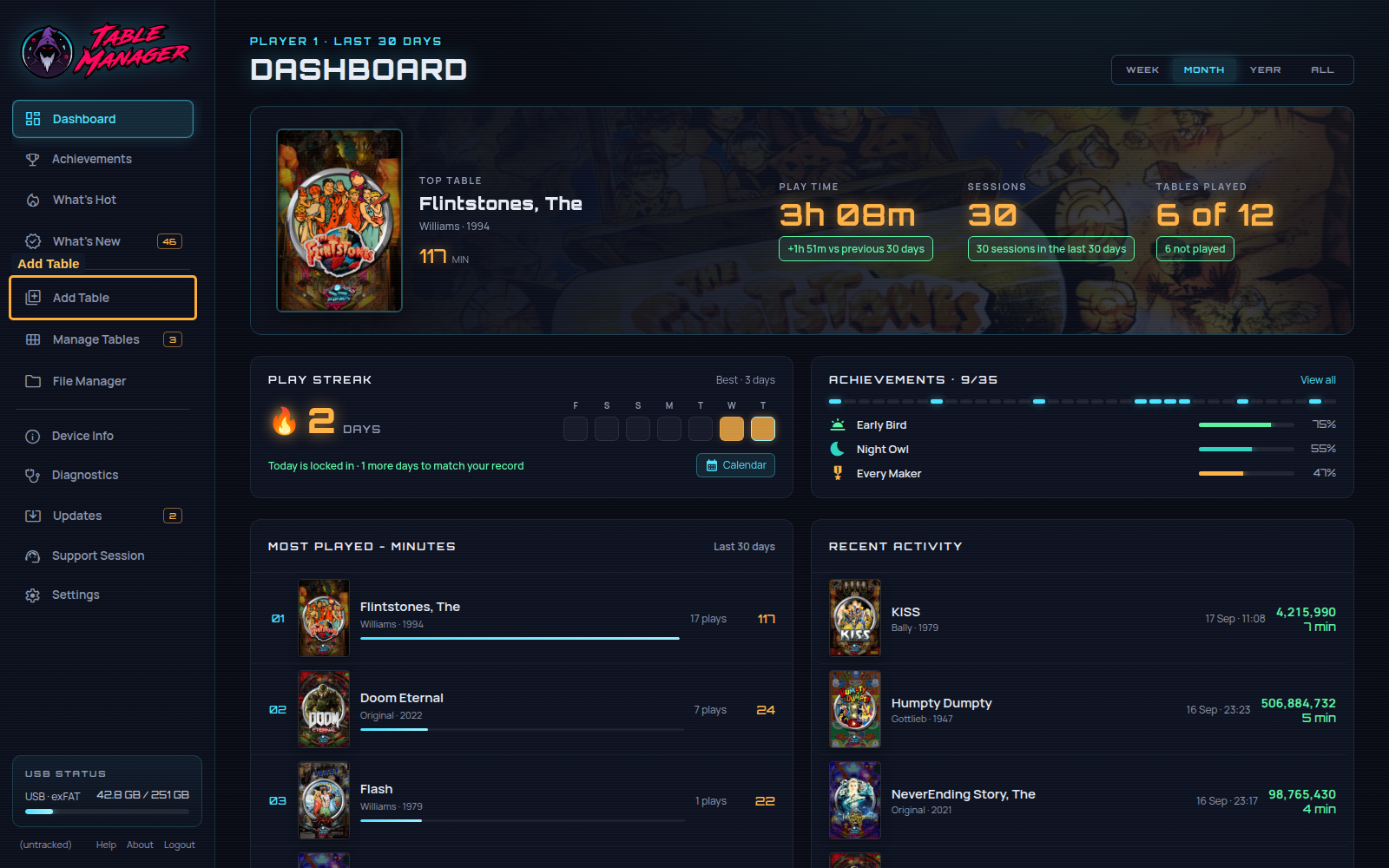
Step Five) Click `Add Table` in the left sidebar
Step Six) Browse the table list on the left of the Select step
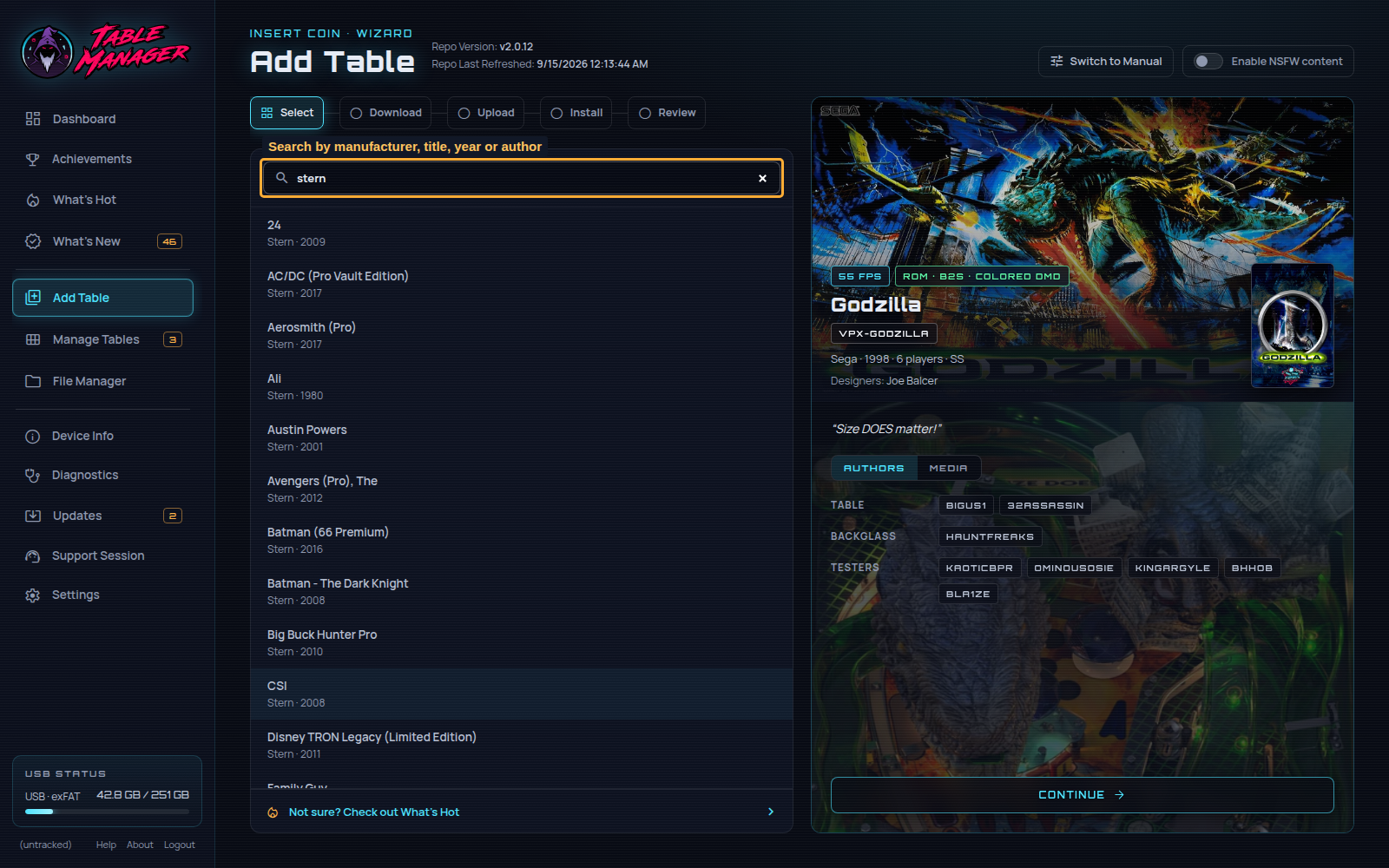
Step Seven) Select a table, and click `Continue`
ℹ️ Can I search by Name / Manufacturer / Year ?
Yes you can! Type in the search field; you can also search by manufacturer, year or author
ℹ️ A table I want is not in the list?
You can request tables in the Discord, but there is no guarantee it will be added.
ℹ️ I know a table is in the Wizard but I can't see it in the list?
If you can't see a table, then check in the `Manage Tables` tab menu, or `File Manager` > `External` folders.
If you already have a table / folder with the same name (ie `Godzilla` / `vpx-godzilla` for Godzilla) then it will hide the option from the list as the Wizard assumes you already have it installed
ℹ️ When I load a table / during TM install - the program crashes / goes to black?
This is likely due to 'Allows Attract Mode in-table or in-game' being enabled on your 'Attract Mode' 4KP/HDP settings.
Make sure this is disabled.
ℹ️ What is the username/password for TM?
Username: legends
Password: unchained
ℹ️ I can't connect to the TM website?
Troubleshooting:
- Make sure the app is still running on your 4KP while you are trying to access the website.
- Make sure your 4KP is on the same network as your PC/mobile. The website is being hosted directly on the 4KP so you have to be able to access your 4KP on the network.
- Make sure to carefully type the URL onto your PC/mobile browser. You need everything from `http://` to the `:9999`, you do not need `(WLAN)` in the URL.
- Verify you have completely disabled In-table Attract Mode on your 4KP. Go to Settings > Attract Mode and DISABLE the attract mode in-table option.
Download the Files
On the second page of the Wizard, you will be given download links to the various files needed for the install.
Always use the versions listed in your Wizard. The external download-site screenshots below may show an older version; for example, the current Godzilla backglass requirement is 2.5.
Each download links comes with a description / version text to help you find the exact file you need.
If you still aren't sure what specific files to download, then download them all on the link.
You can return back to this page later if needed so don't worry too much.
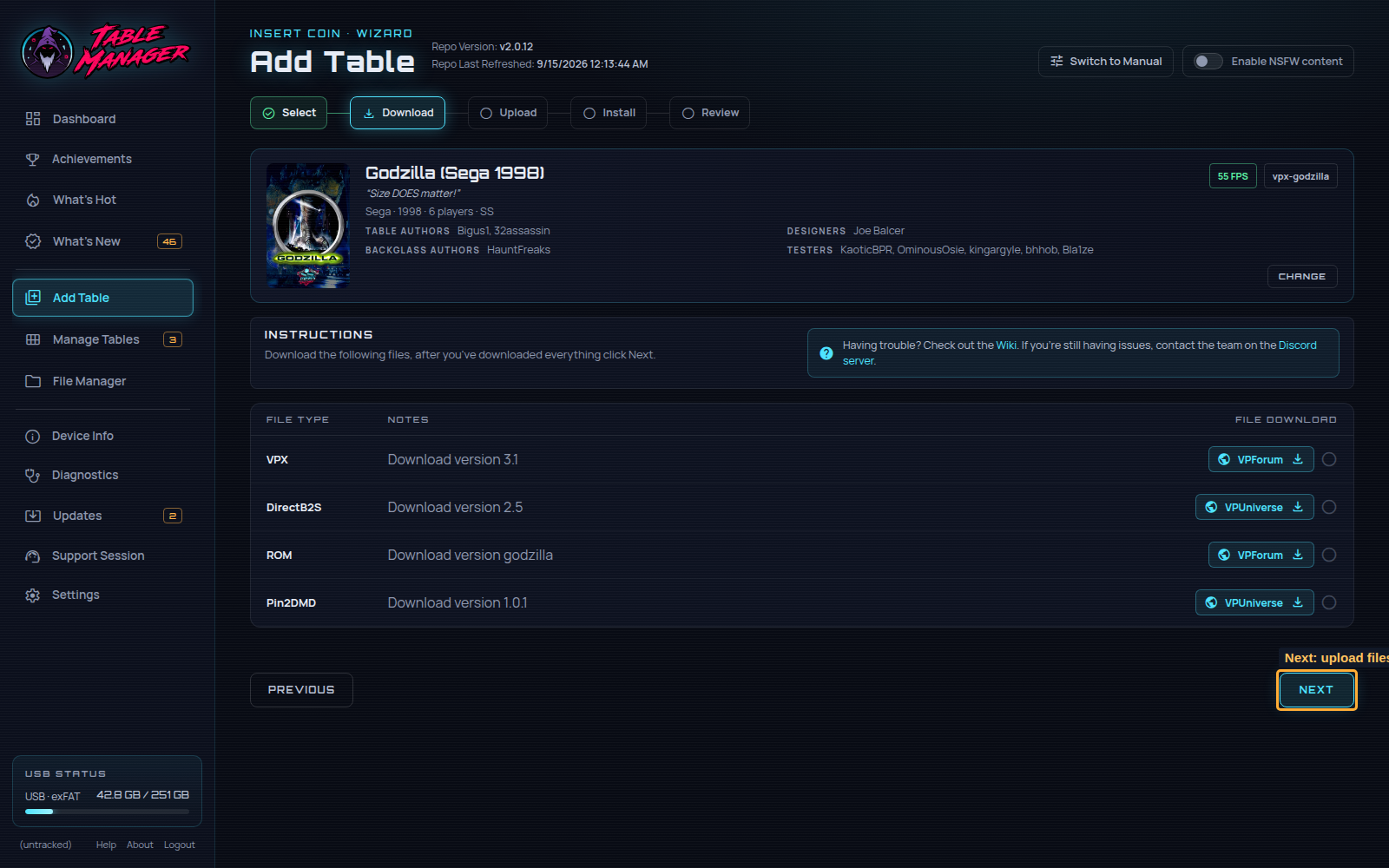
Once the downloads are complete, click Next at the bottom right of the screen!
TIP
Most websites will require you to be logged in to download the files.
If this is your first time on one of the sites, create an account!
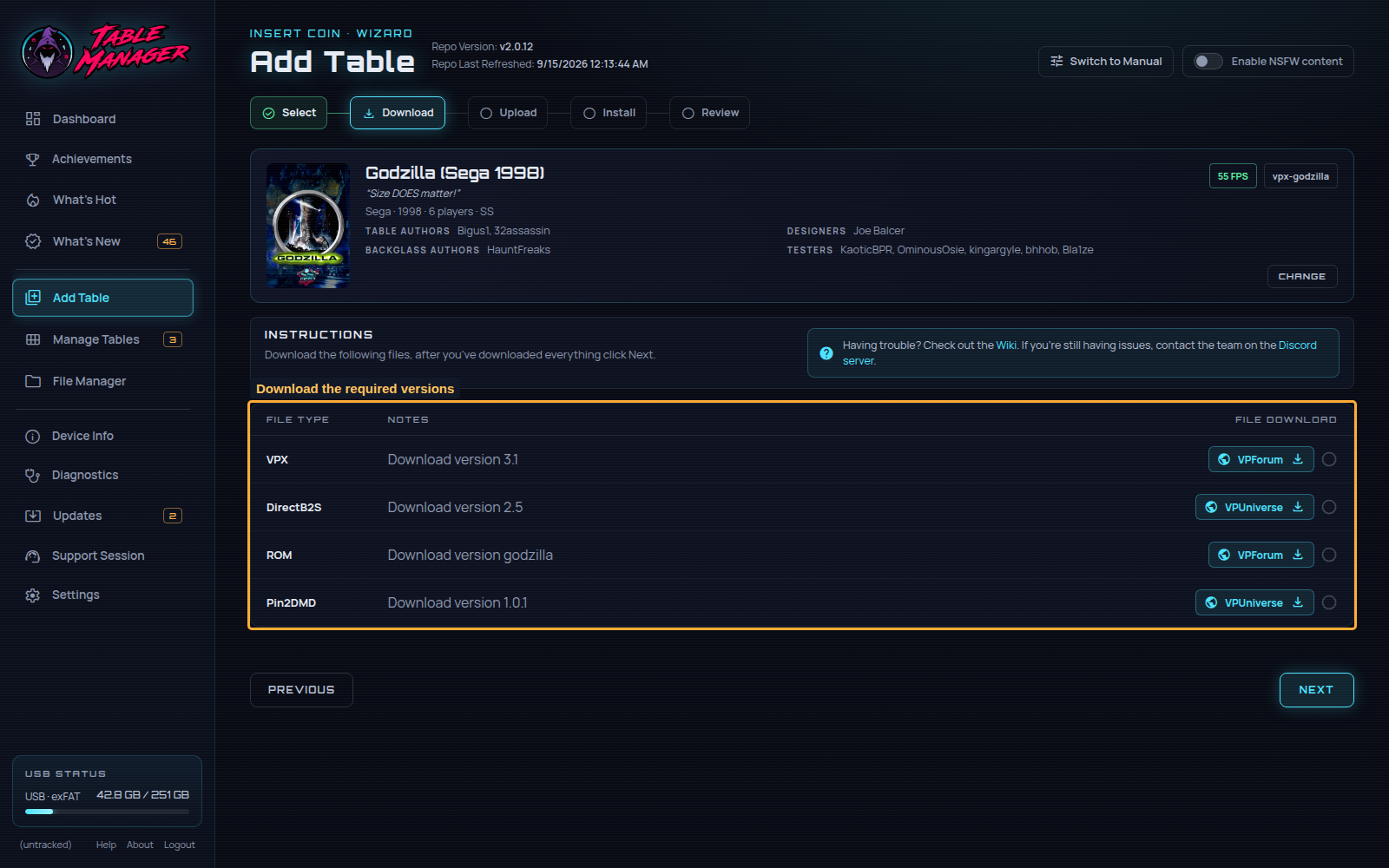
ℹ️ Step by step instructions? (w/ images)
Step One) Click the `🌍︎ VPForum` button on the `VPX` row
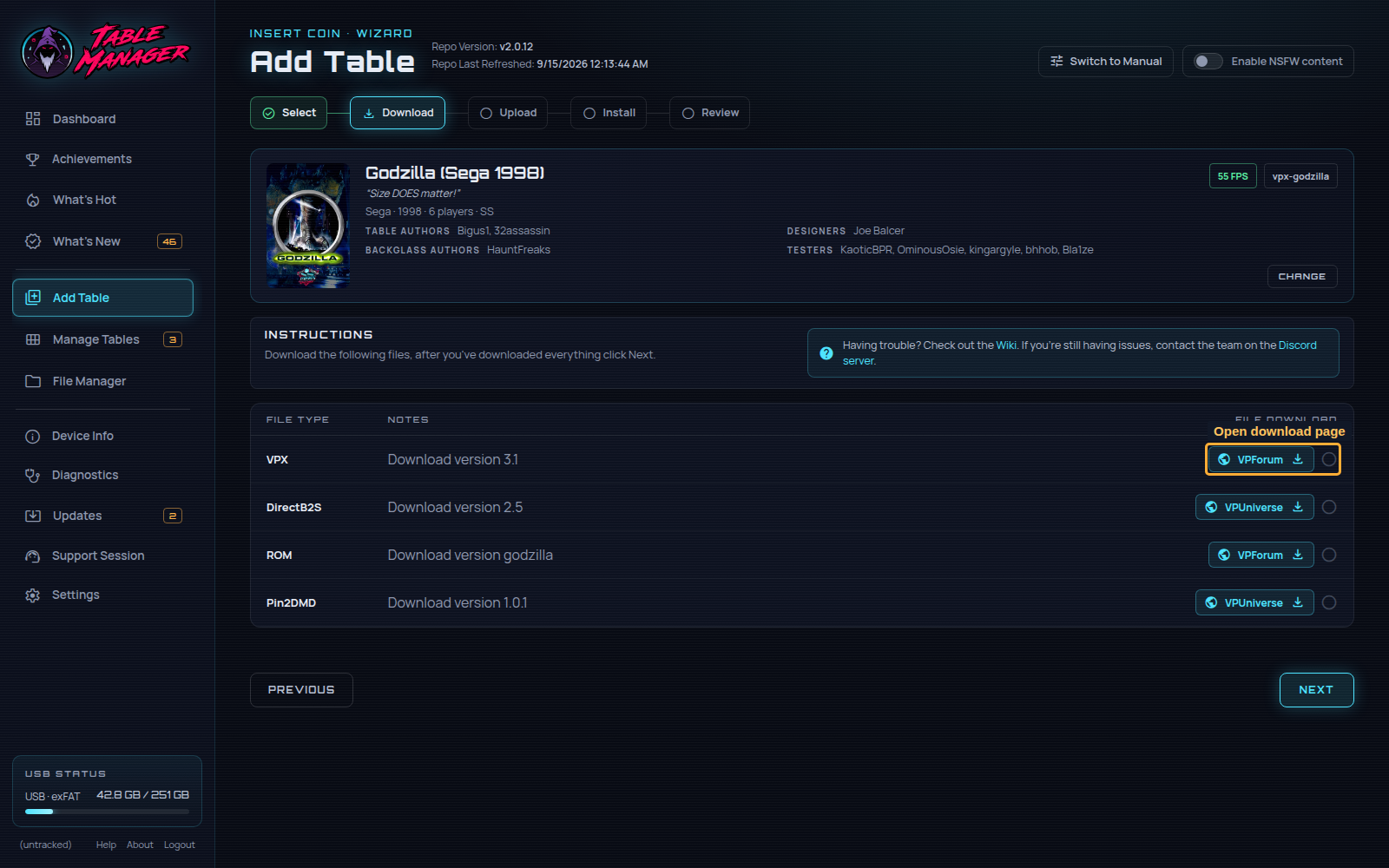
Step Two) After logging in, click `Download`. You can see here the version matches the one from the Wizard page.
Step Three) Back on the Table Manager Wizard page, click the `🌍︎ VPUniverse` button on the `DirectB2S` row
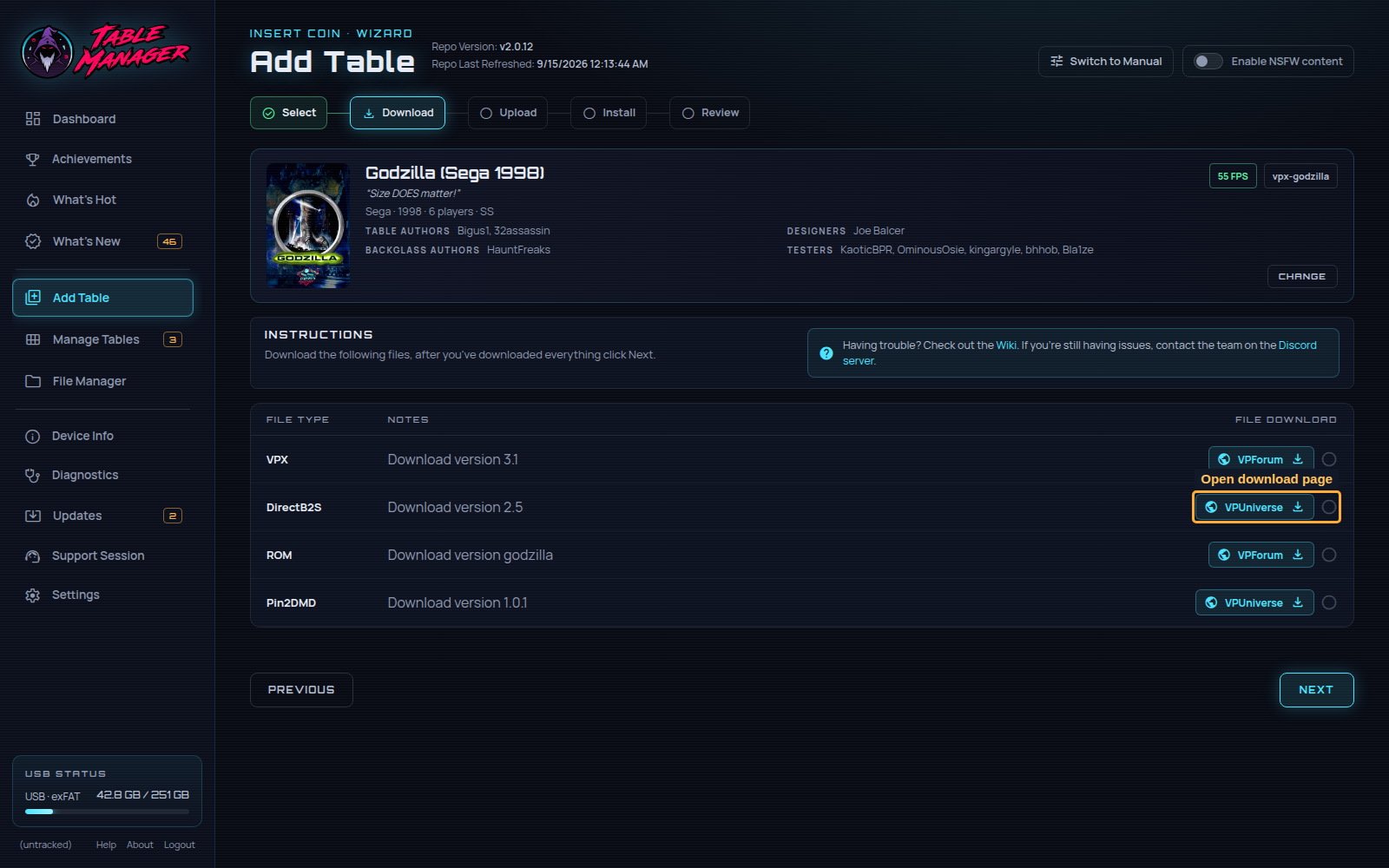
Step Four) After logging in, click the main `Download` button and then the `Download` button for our specific file.
You can see here the version matches the one from the Wizard page.
Step Five) Back on the Table Manager Wizard page, click the `🌍︎ VPForum` button on the `ROM` row
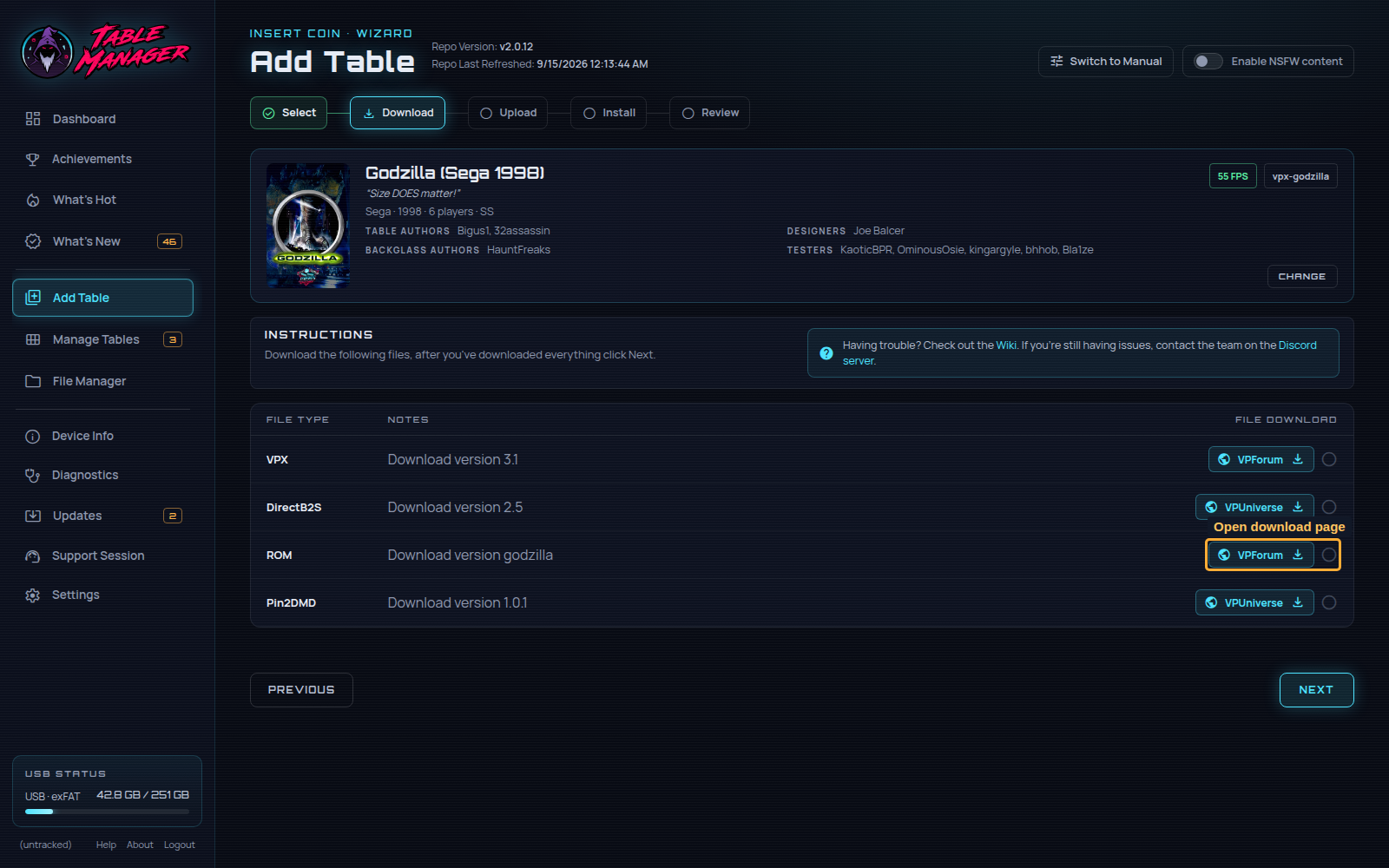
Step Six) Click `Download`. You can see here the version matches the one from the Wizard page.
Step Seven) Back on the Table Manager Wizard page, click the `🌍︎ VPUniverse` button on the `Pin2DMD` row
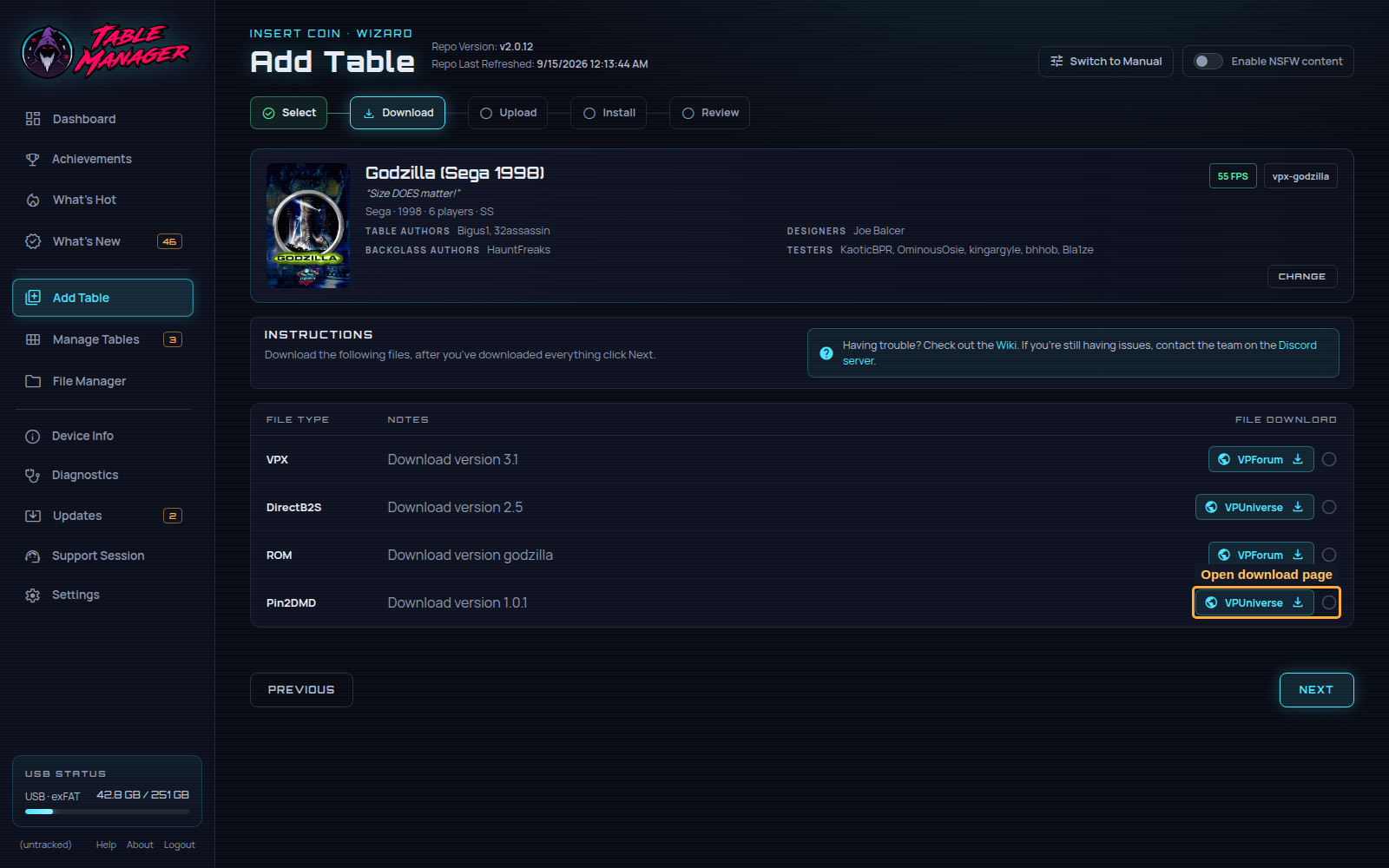
Step Eight) Click the main `Download` button and then the `Download` button for our specific files.
You can see here the version matches the one from the Wizard page.
For Pin2DMD you need **both** the `.pal` and the `.vni` files
Step Nine) Back on the Table Manager Wizard page, click `Next`
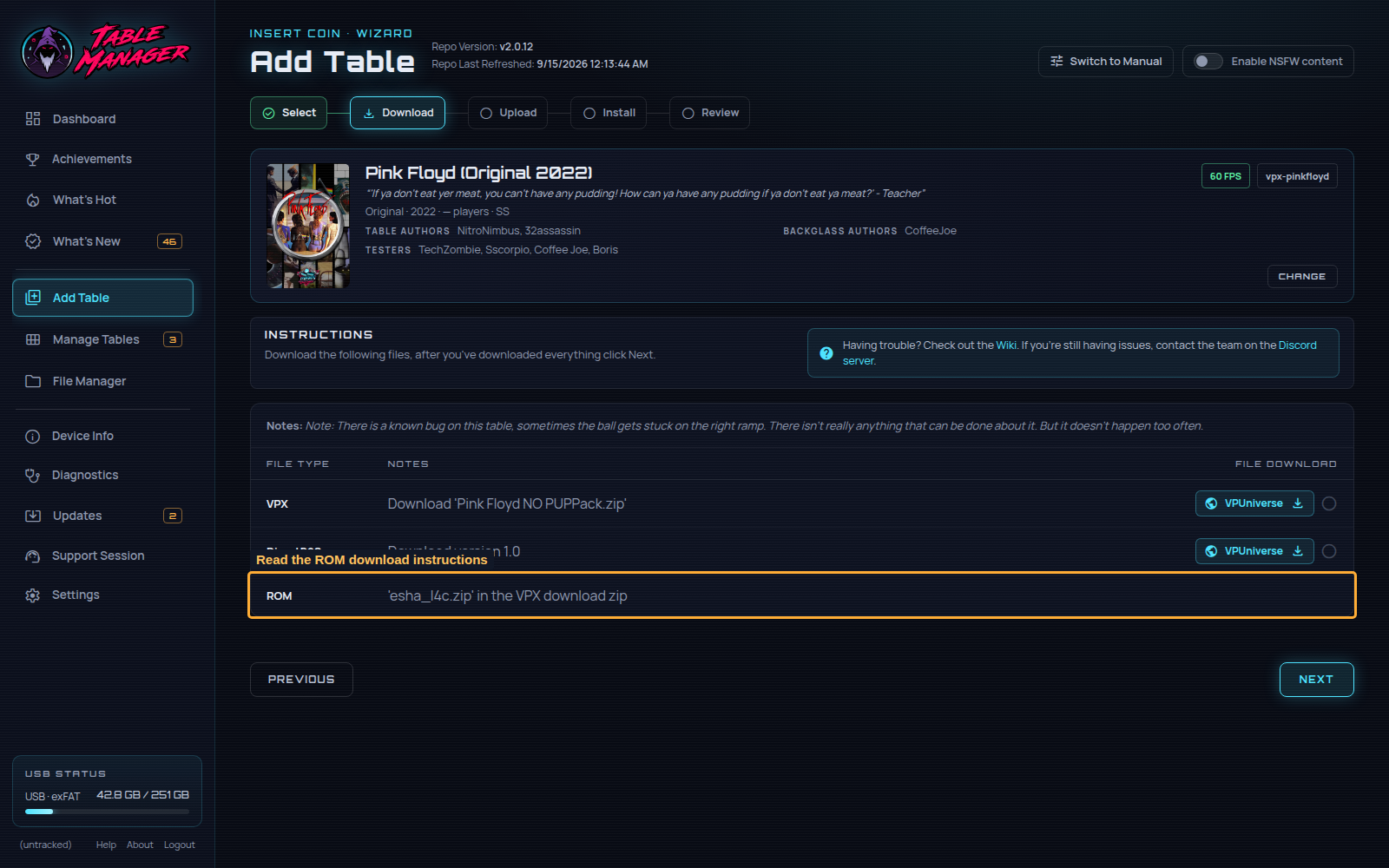
ℹ️ There is no link button on this row?
Occasionally multiple components are found on a single download link.
If this is the case, there won't be a download link, and instead it will tell you in the description where to find the file.
In the below example, the `ROM` description says you can find the file within the `VPX` download link.
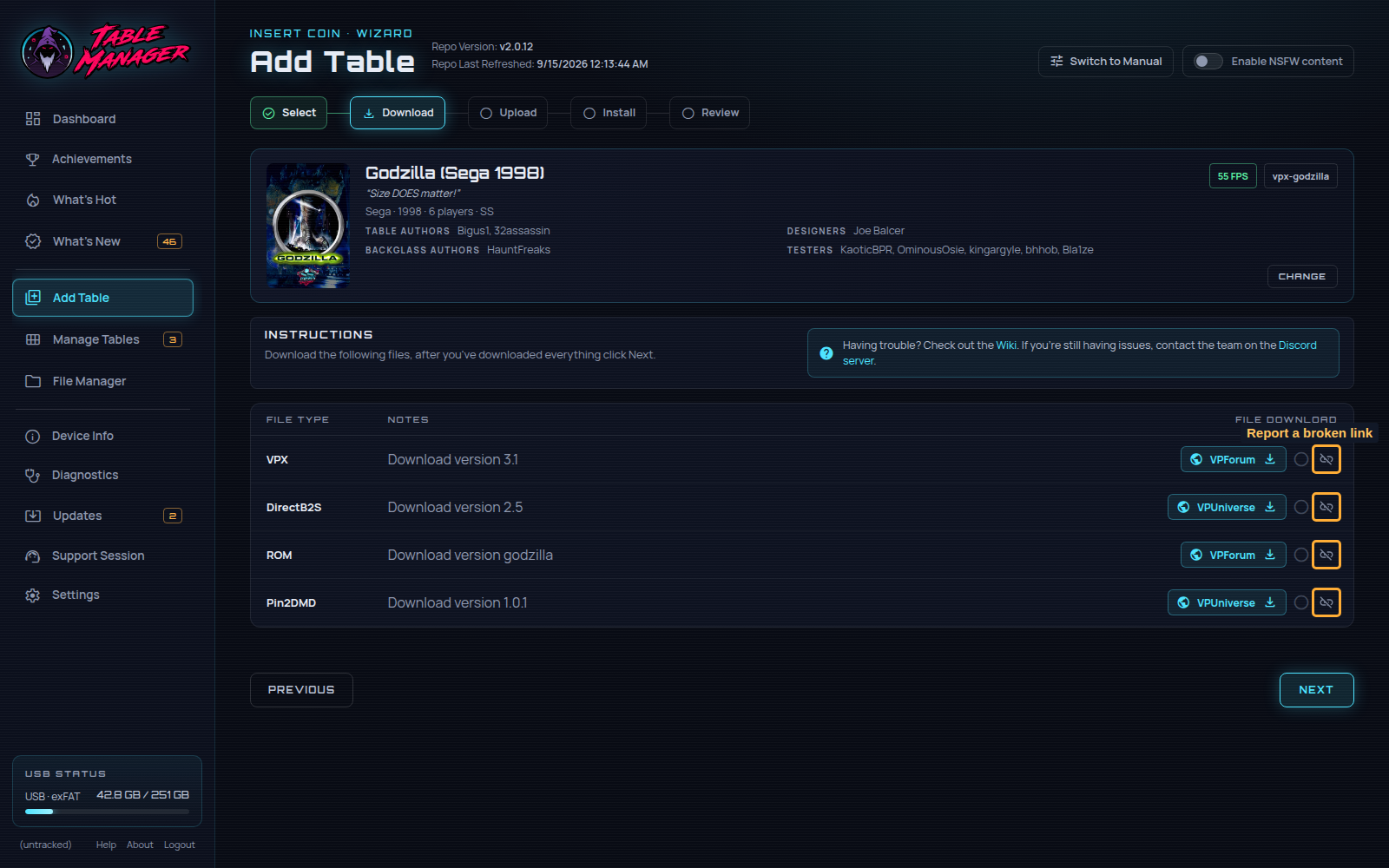
ℹ️ What do I do if a link is broken?
First, double check the site you are on isn't having issues, especially if it is VPForums.
If link reporting is available on your cabinet, use the Report broken link button beside the download link. Otherwise, report the table and failed link in the Discord support channel.
ℹ️ The link doesn't work?
Sometimes there are multiple links available, if you will see a dropdown arrow.
If you are struggling to find or use the first link, click the dropdown and try the second link!
ℹ️ What do you do if the version is different on the link?
Sometimes tables / backglasses / colour dmds get updated, and the version we want is not the version on the website.
On VPForum there is a Previous versions section at the bottom right.
On VPUniverse there is a View Changelog button, that lets you see the previous versions. On each version will be a download link
Upload the Files
This is the page where you upload those downloaded files.
Click each input, and select the file you downloaded.
If at any point you get confused, you can use the Previous button at the bottom left to go back to the downloads page and re-read the descriptions.
If you select the wrong file, you will get a red warning. Give it a few goes before giving up, it's easy to make a simple mistake here!
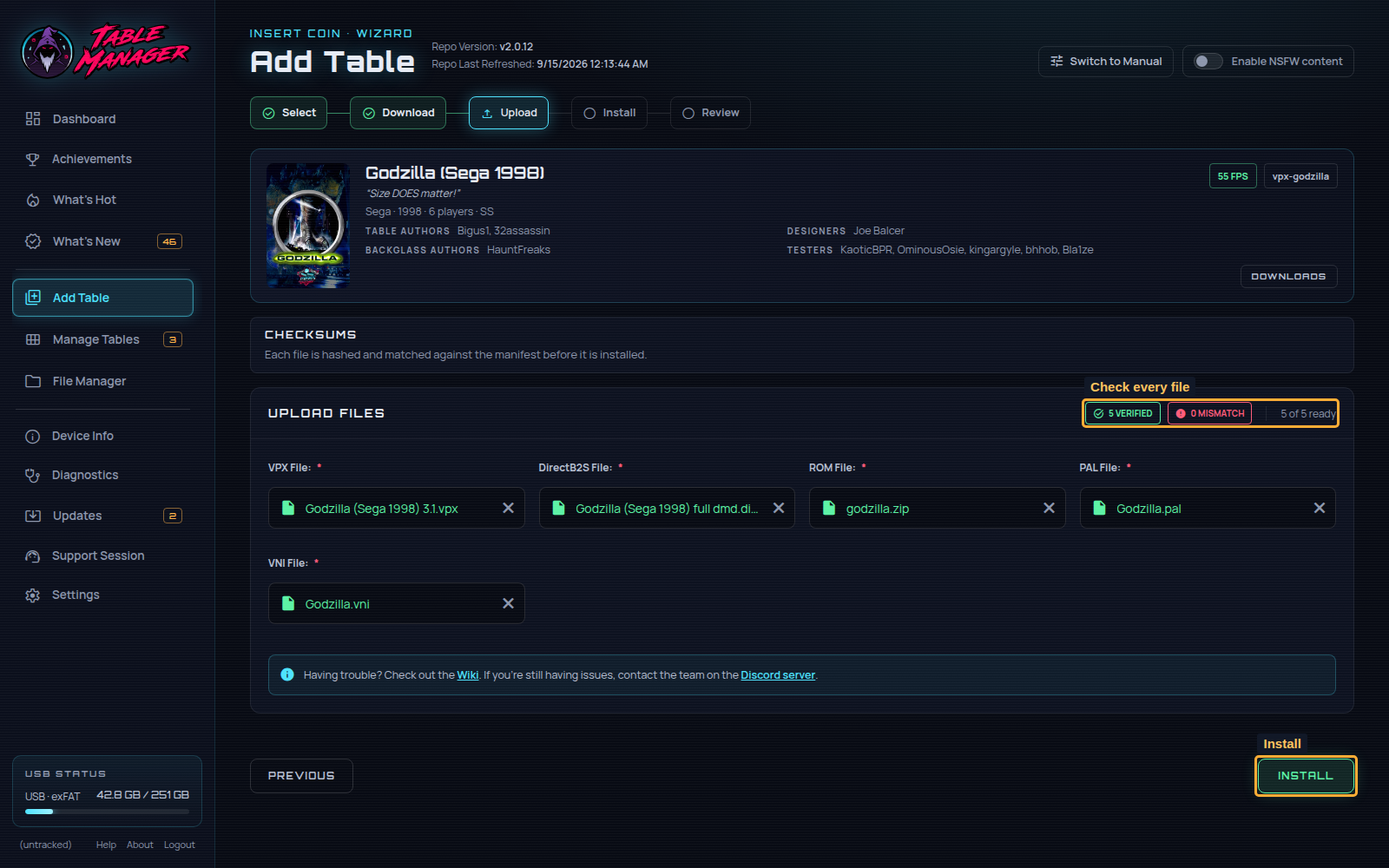
Once all required files are verified, click Install at the bottom right of the screen!
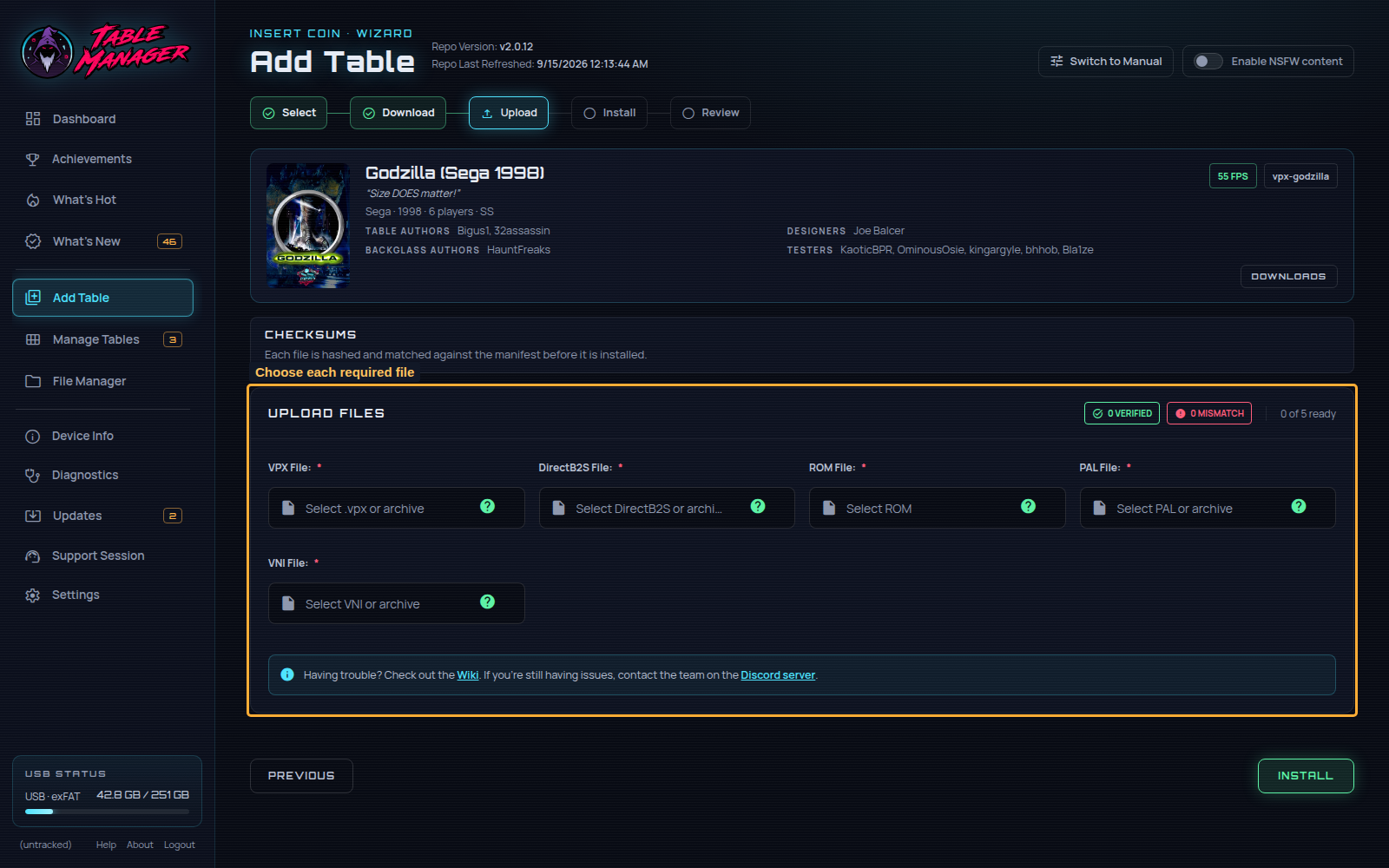
ℹ️ Step by step instructions? (w/ images)
Step One) Click the `📄 Select .vpx or archive` input under the `VPX File: *` title.
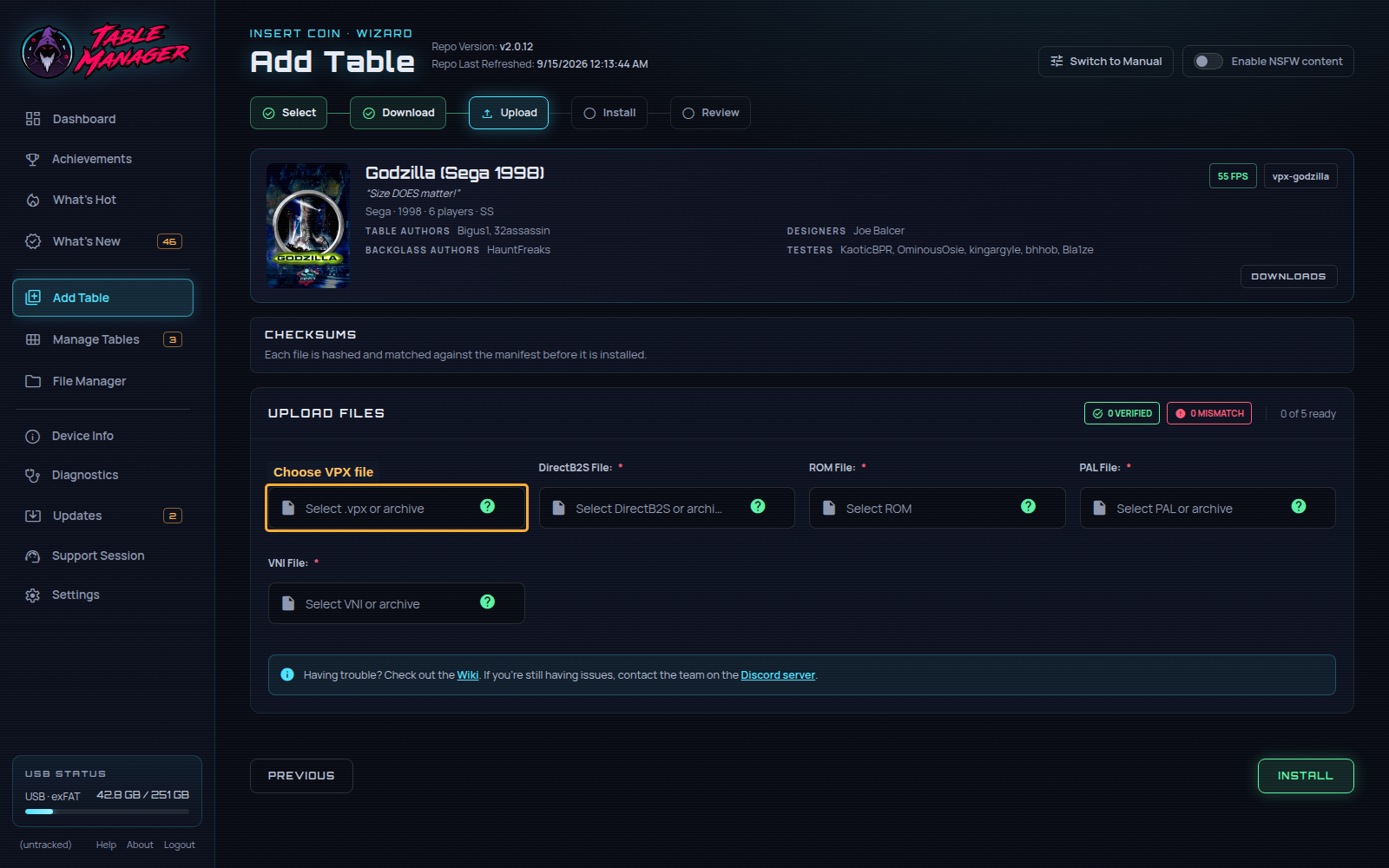
Step Two) Select the zip file containing the `.vpx` file `Godzilla (Sega 1998)3.1.vpx.zip` and hit `Open`.
If you get a red error, try extracting the zip file and selecting the specific `.vpx` file within.
Step Three) If you selected the right file, you will see the file name in green on the screen.
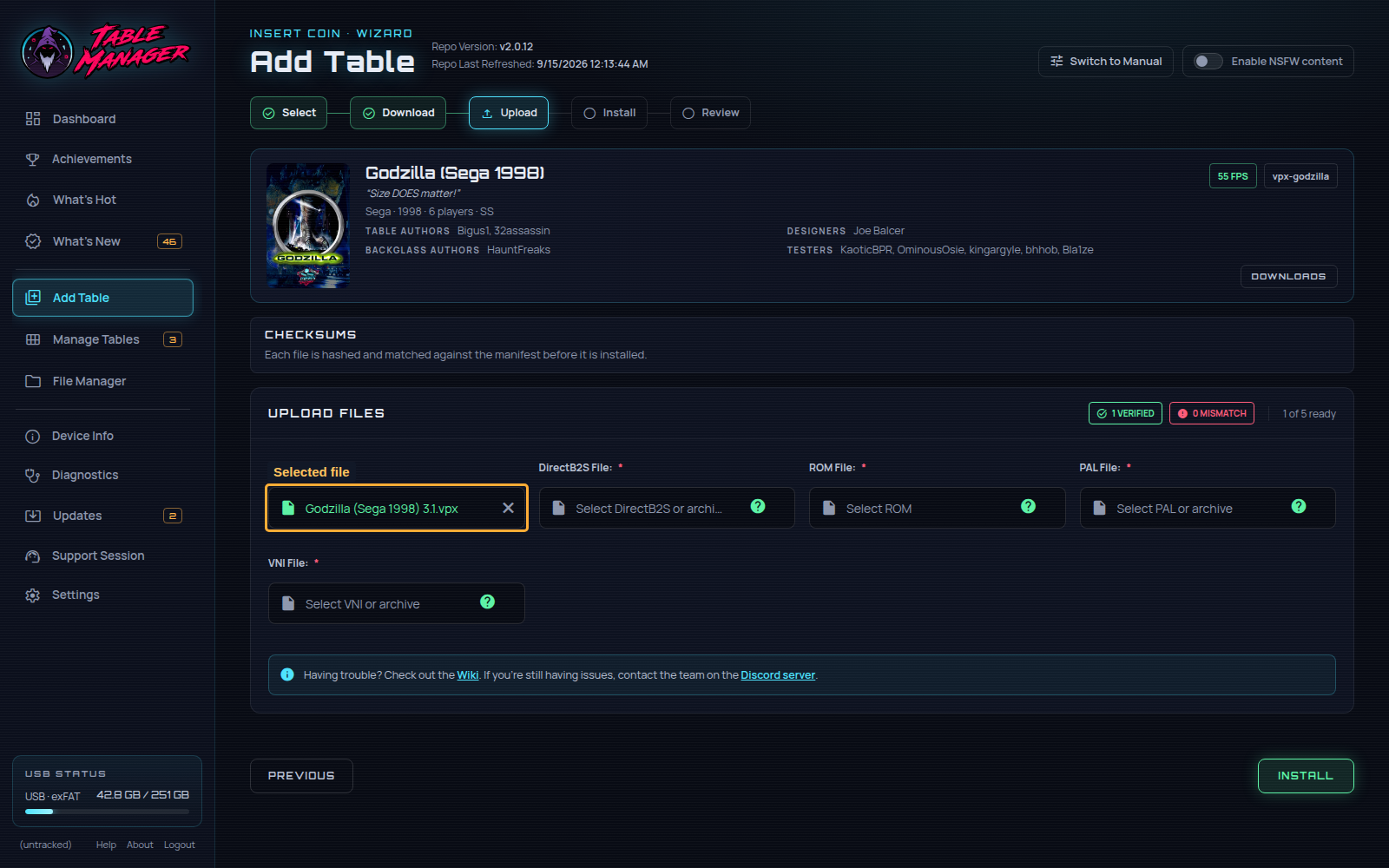
Step Four) Click the `📄 Select DirectB2S or archive` input under the `DirectB2S File: *` title.
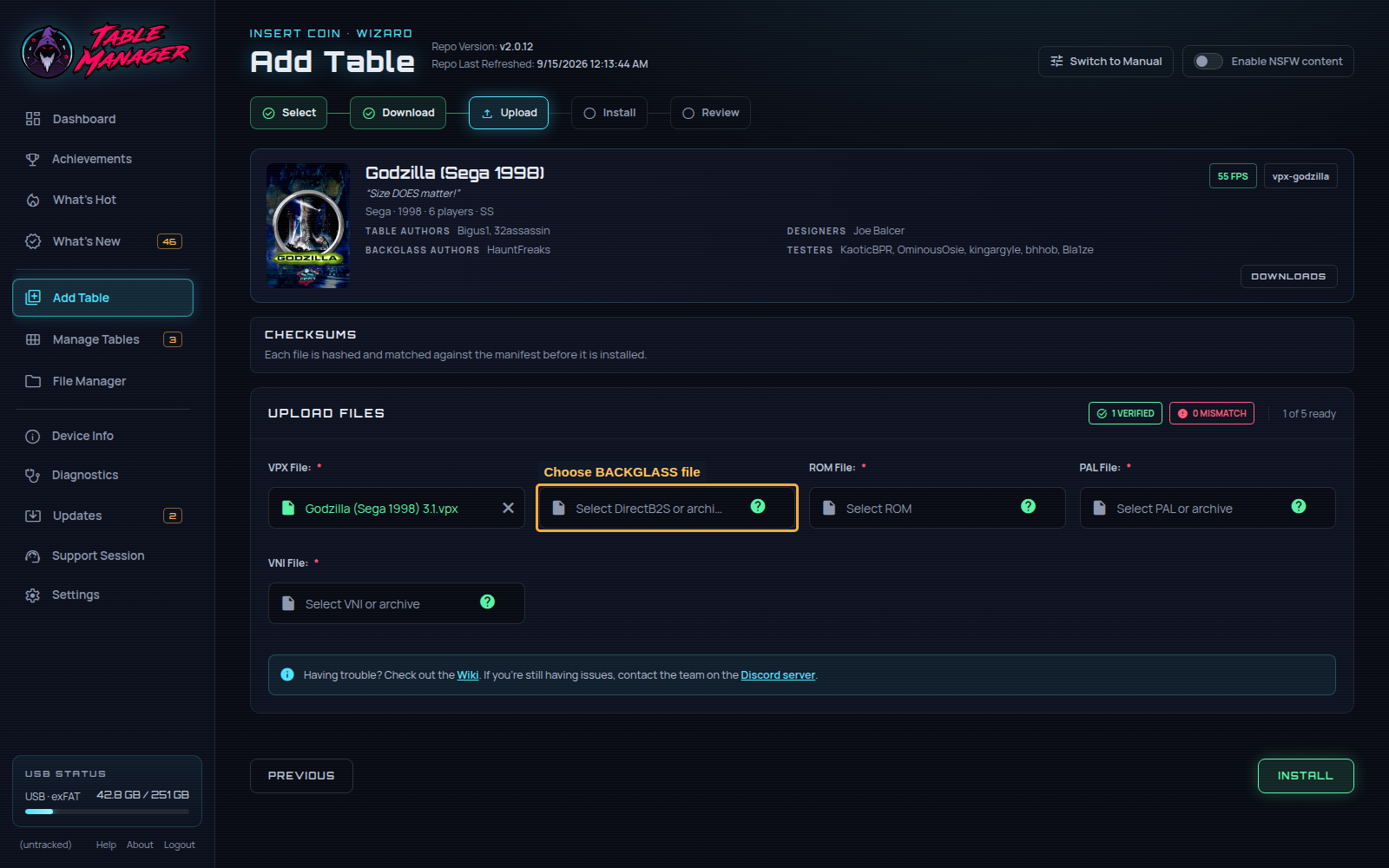
Step Five) Select the zip file containing the `.DirectB2S` file `Godzilla (Sega 1998) full dmd.zip` and hit `Open`.
If you get a red error, try extracting the zip file and selecting the specific `.DirectB2S` file within.
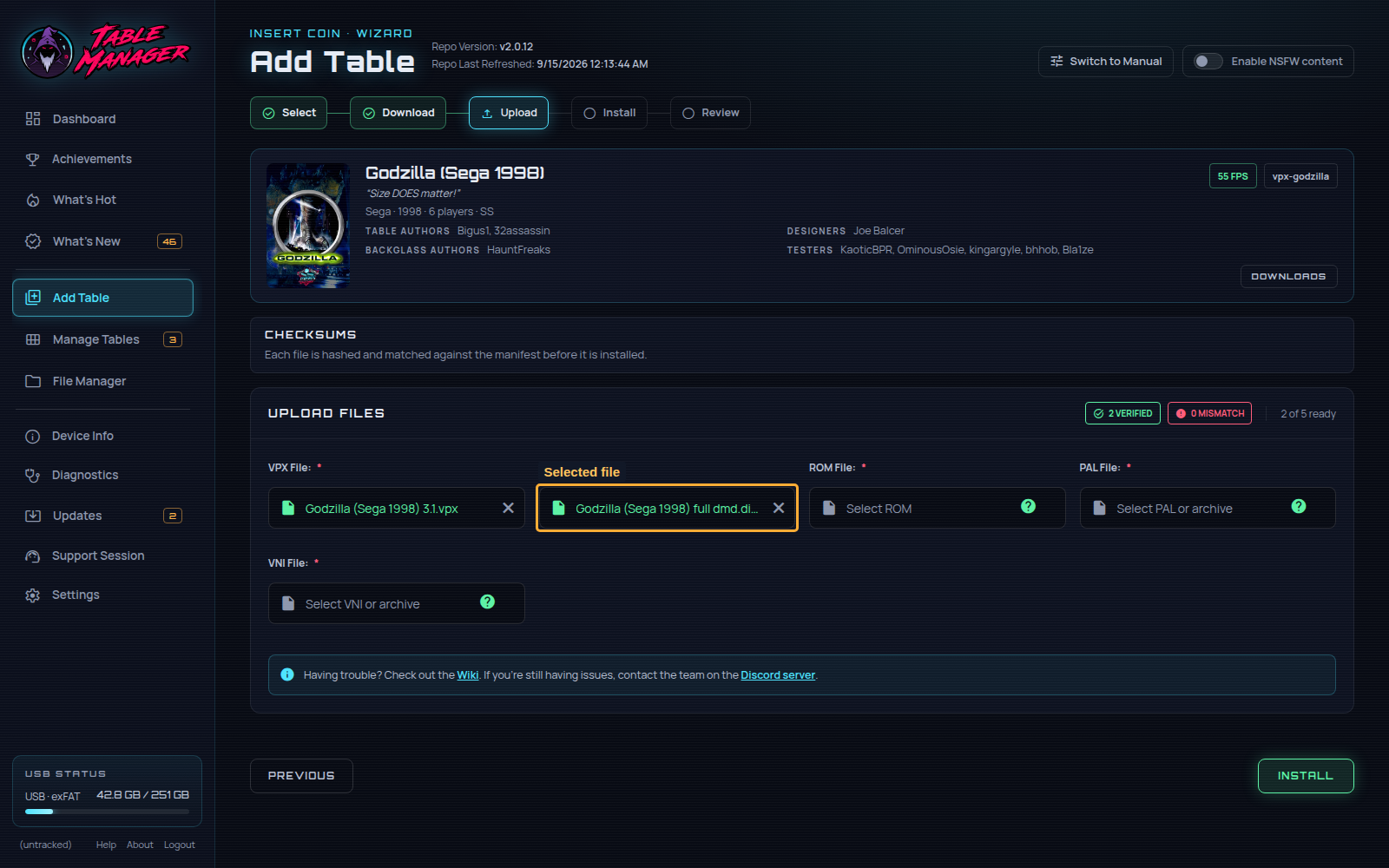
Step Six) Click the `📄 Select ROM` input under the `ROM File: *` title.
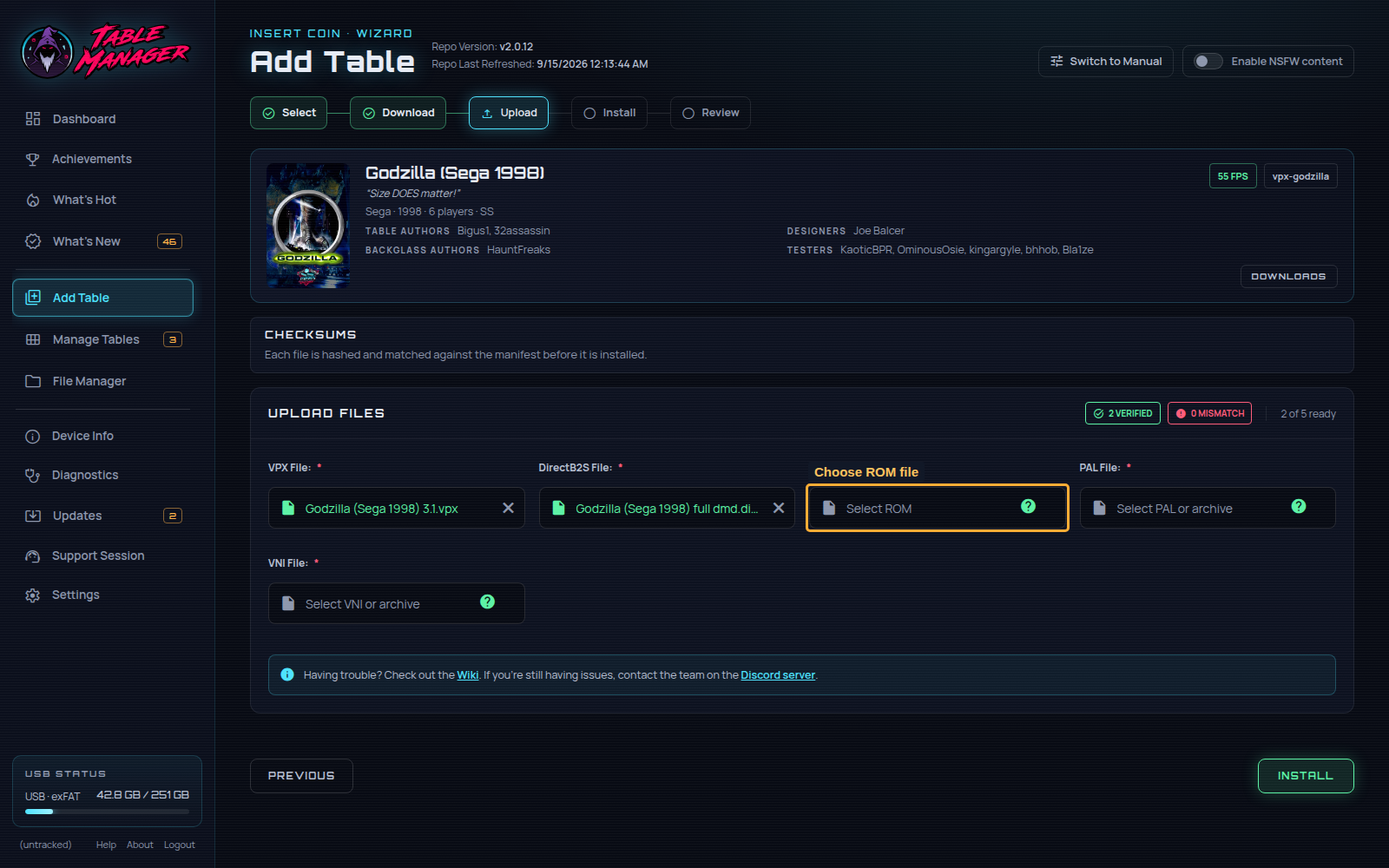
Step Seven) Select the ROM zip file `godzilla.zip` and hit `Open`.
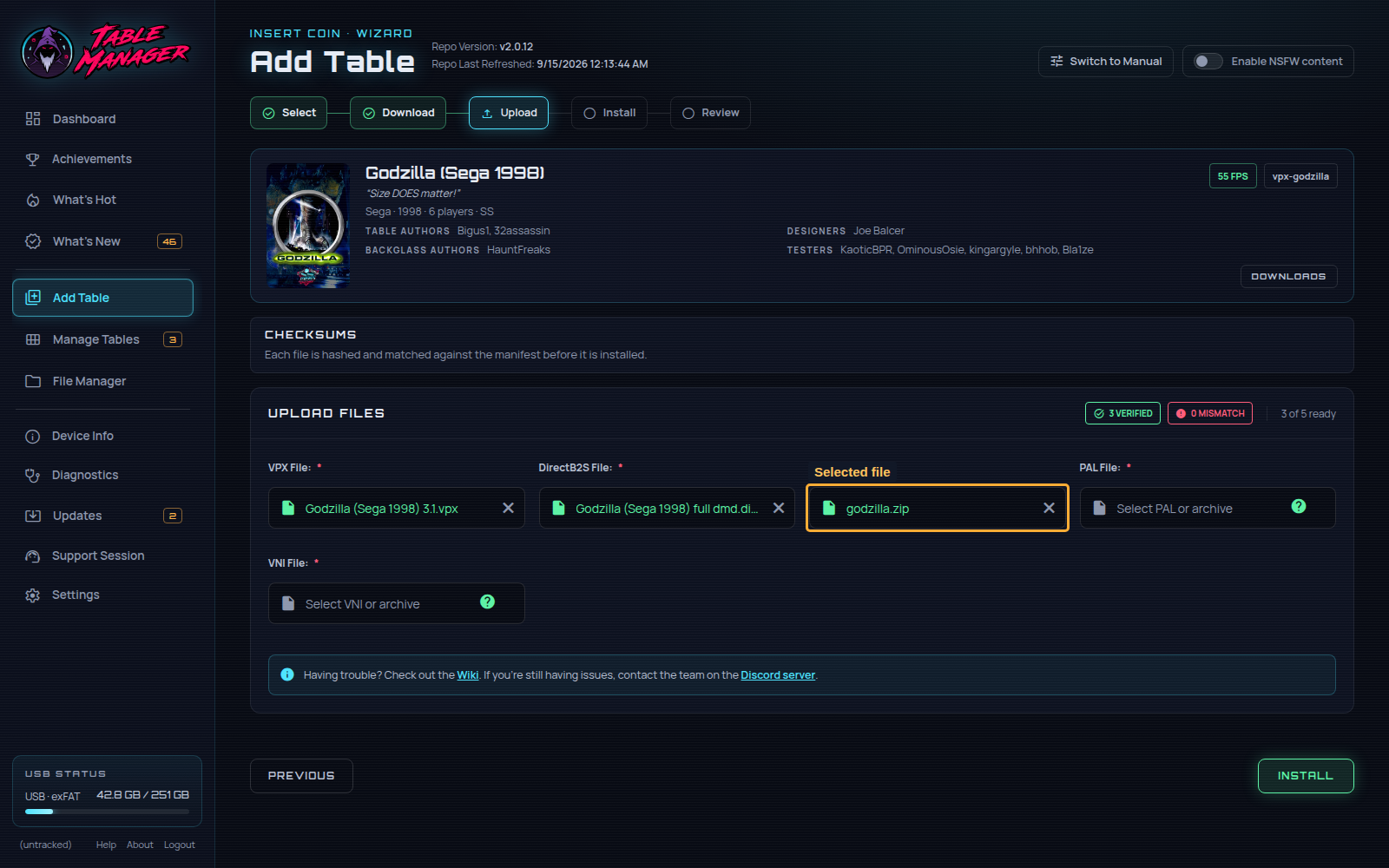
Step Eight) Click the `📄 Select PAL or archive` input under the `PAL File: *` title.
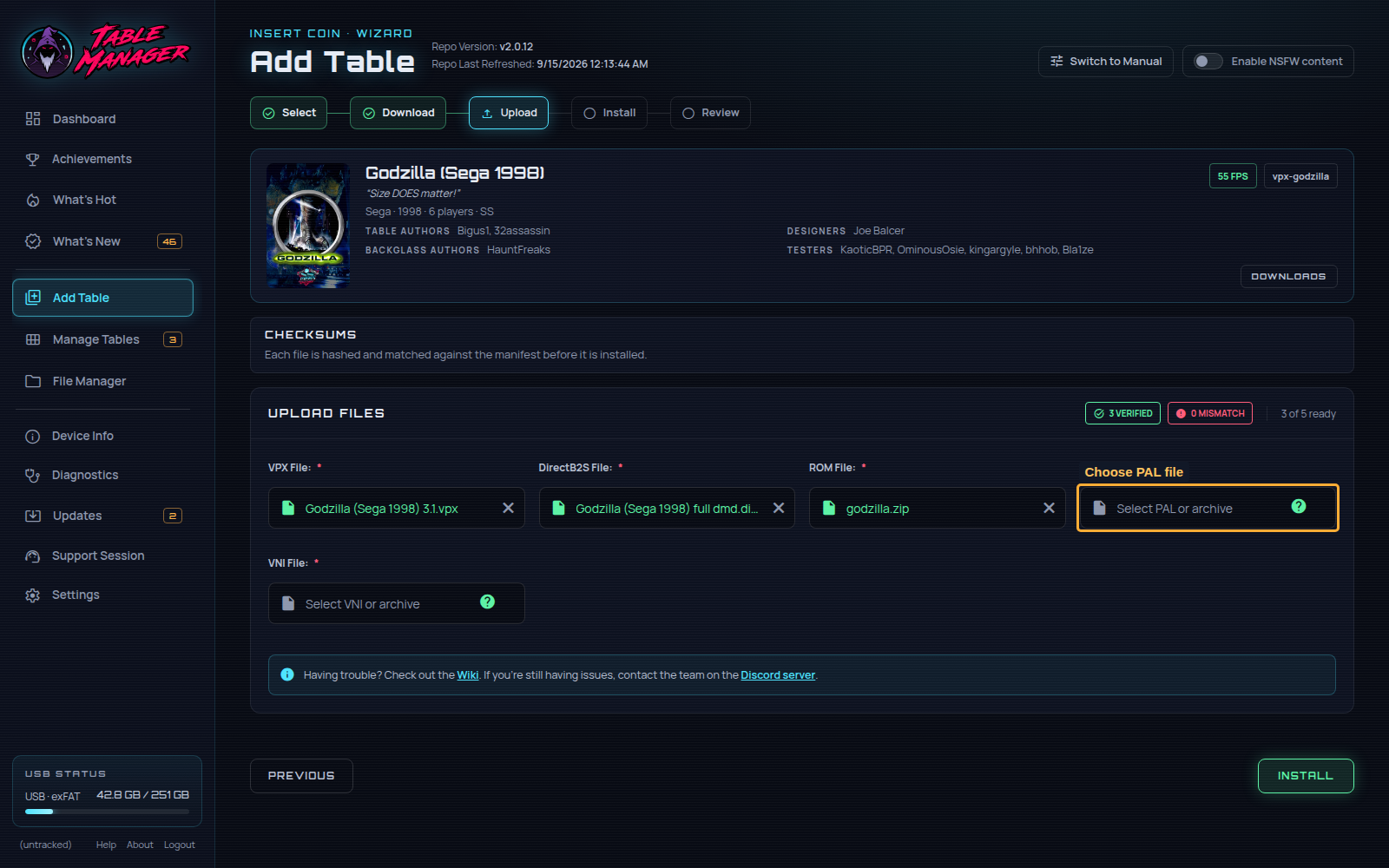
Step Nine) Select the `.pal` file `Godzilla.pal` and hit `Open`.
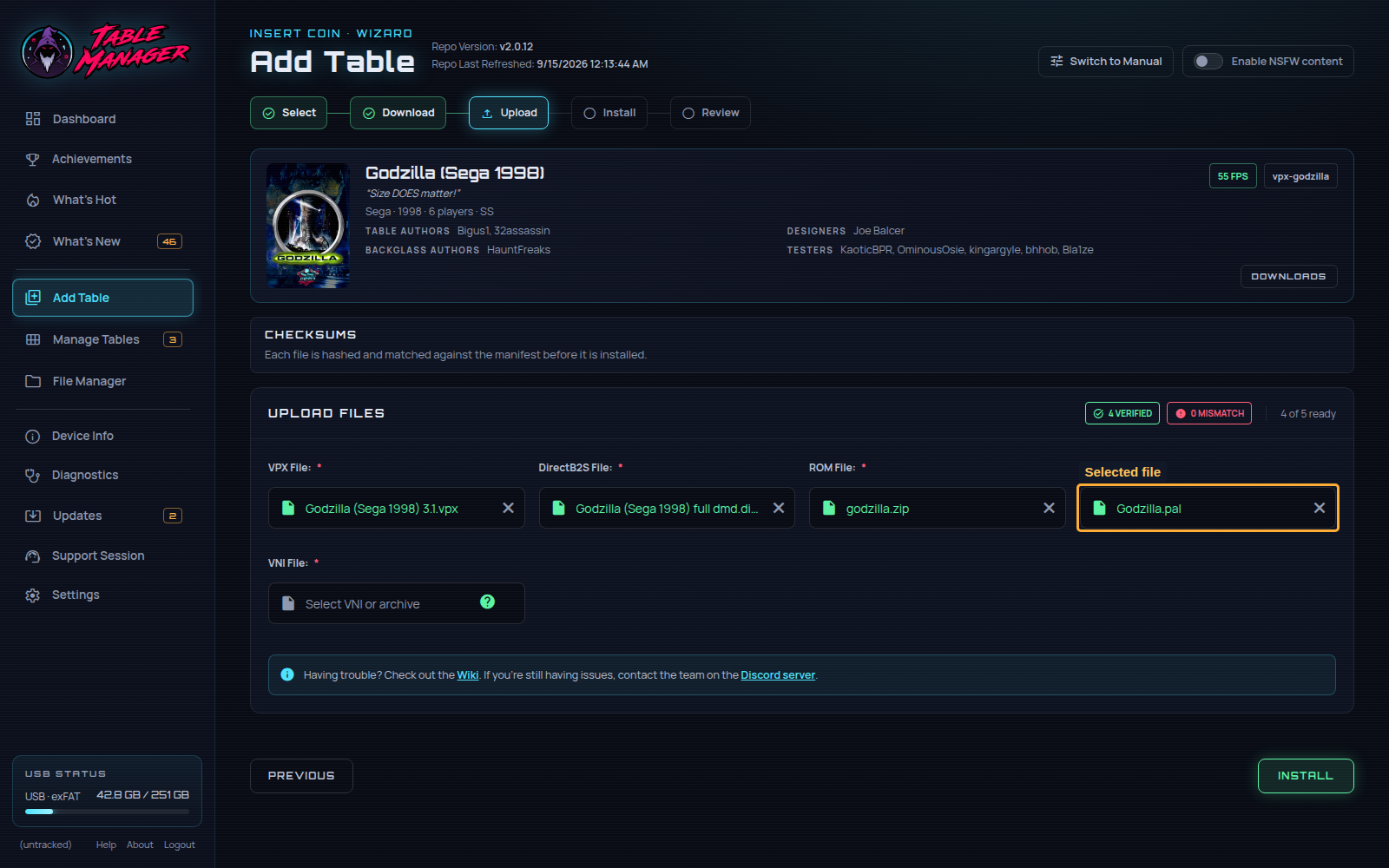
Step Ten) Click the `📄 Select VNI or archive` input under the `VNI File: *` title.
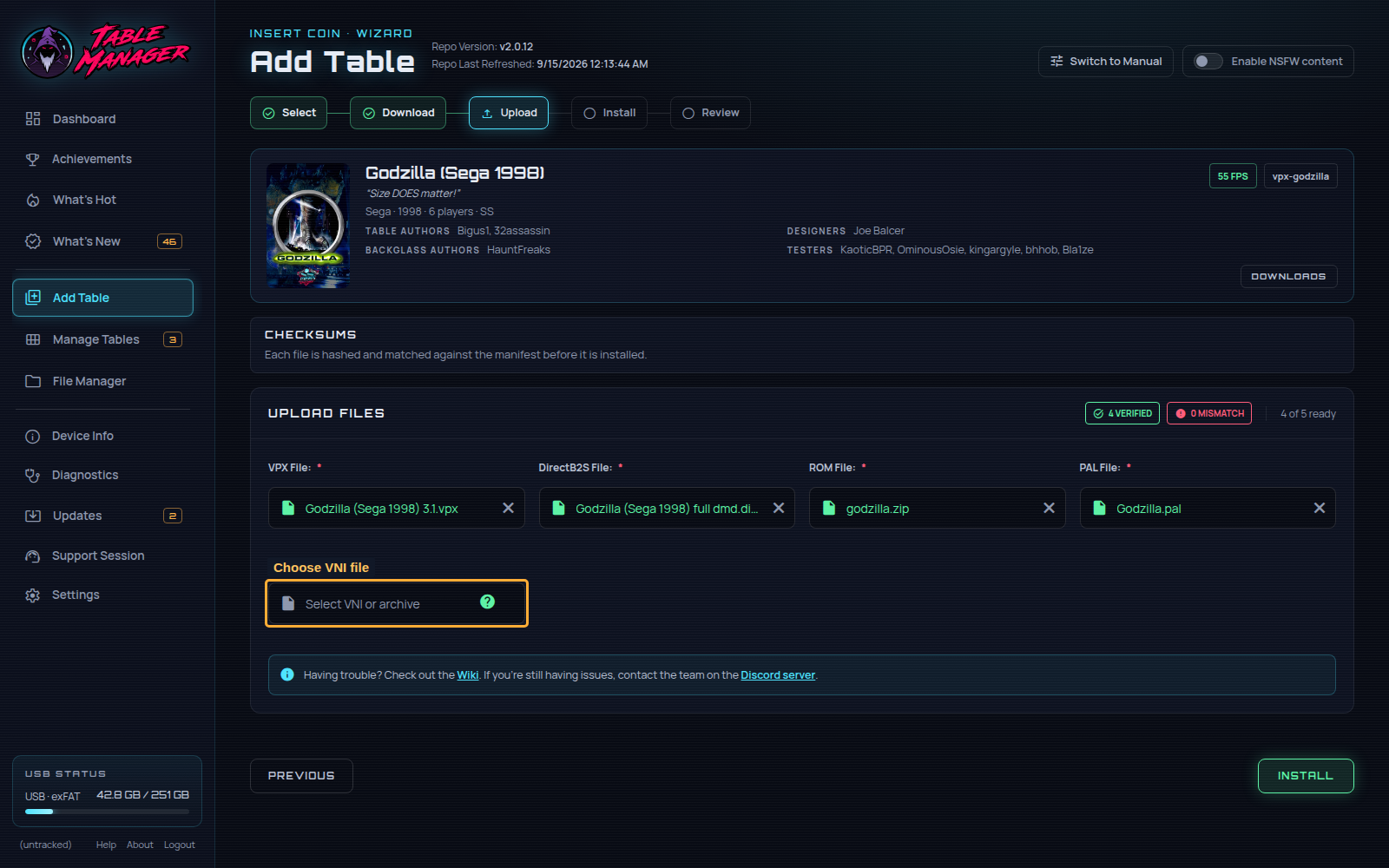
Step Eleven) Select the `.vni` file `Godzilla.vni` and hit `Open`.
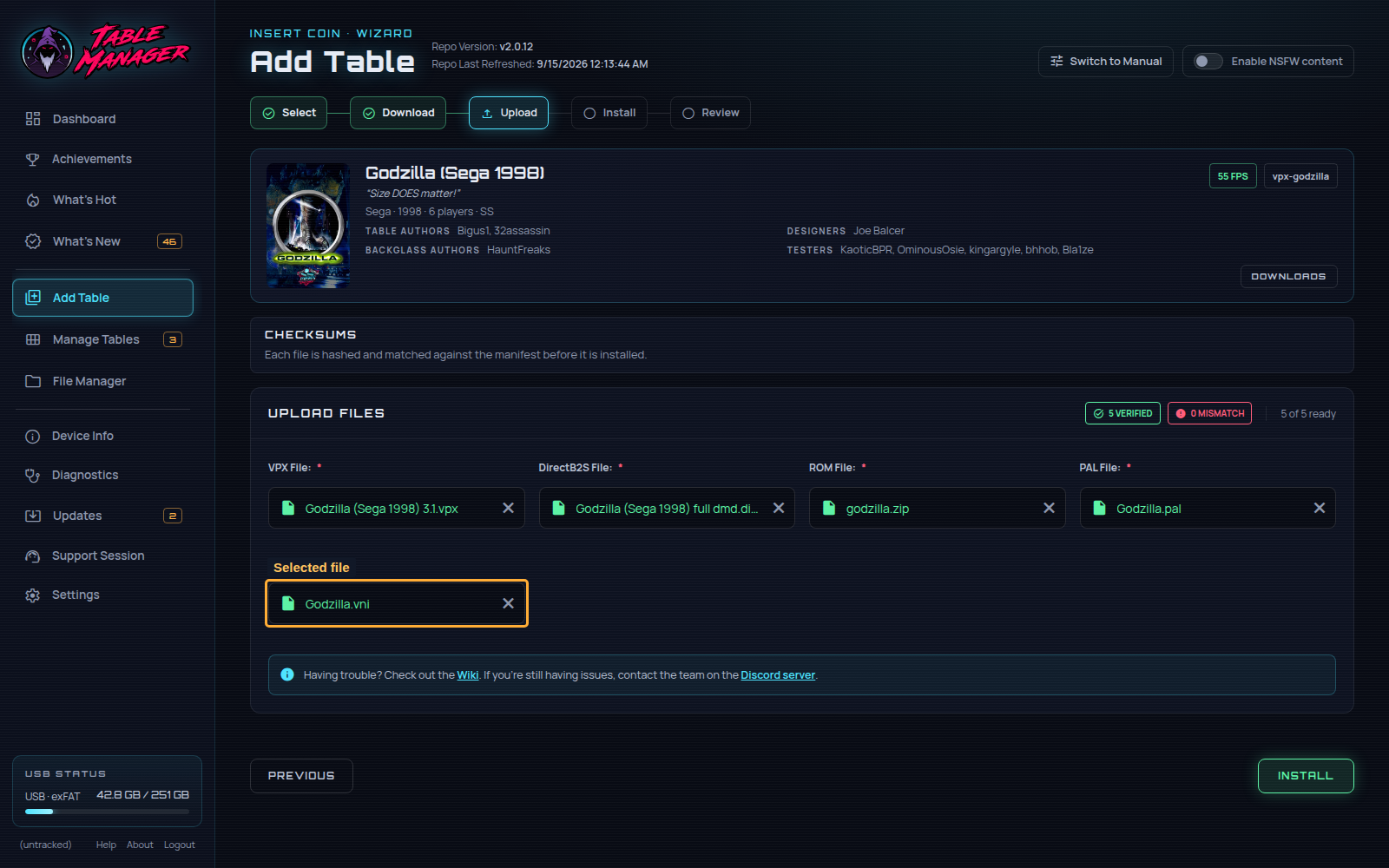
Step Twelve) Click `Install`!
ℹ️ [No matching file was found inside the archive] error?
This means that the website couldn't file the file within the archive.
Or you selected the wrong zip file altogether.
Double check you are selecting the right archive folder, and when in doubt unzip and select the specific file
ℹ️ [File version mismatch] error?
We check every file matches what we would expect.
This error means you've selected a file we were not expecting.
This could be for 2 reasons:
1: You selected the wrong file altogether. ie one for a different table
2: The file was updated by the author, in which case you need to get a previous version from the download page.
ℹ️ I downloaded 'Pin2DMD' but it's asking for 'PAL'/'VNI'?
Pin2DMD uses the `.pal` and `.vni` files to colour the DMD.
Those 2 files are the ones you need to download and upload.
Install
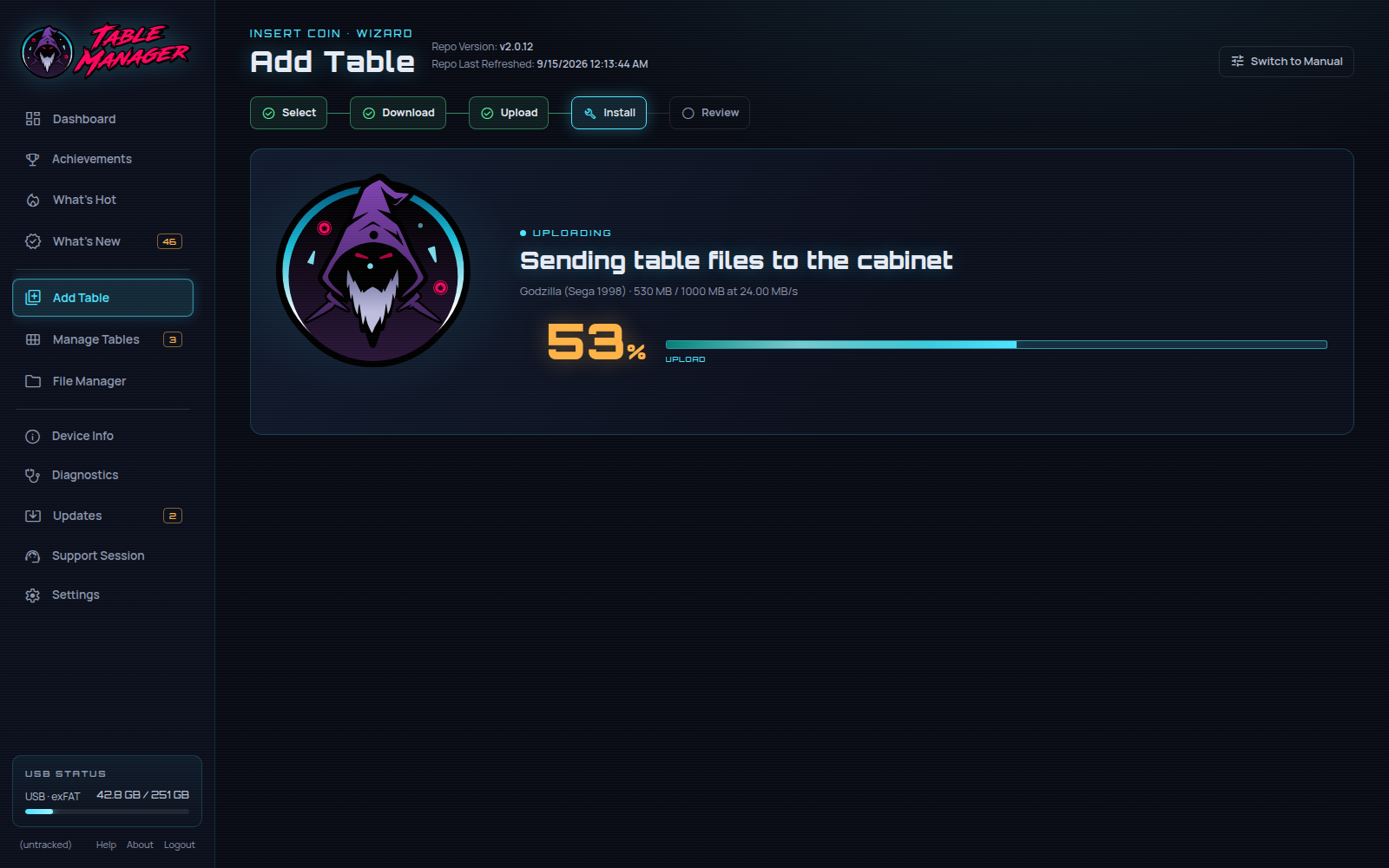
You've done the hard work! Now just sit back and let us handle the rest!
Play!
That's it! You should now have your very first VPX table on your 4KP!
Go back to your machine, and hit the << button to exit out of the Table Manager
You should then see your table within the External Applications tab, next to the Table Manager!